
UPDATE 2025.12.10
Resolve Health Connect Linking Issues
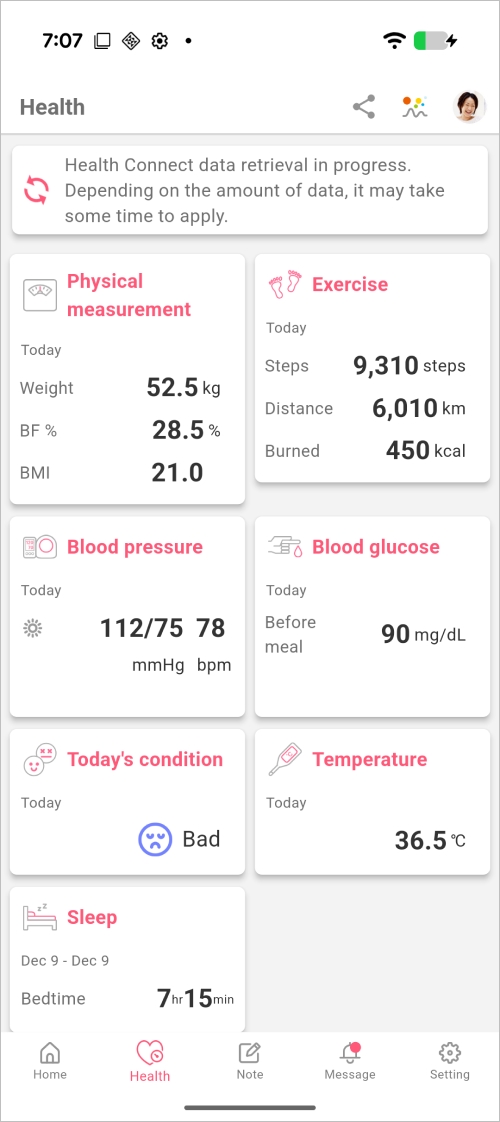
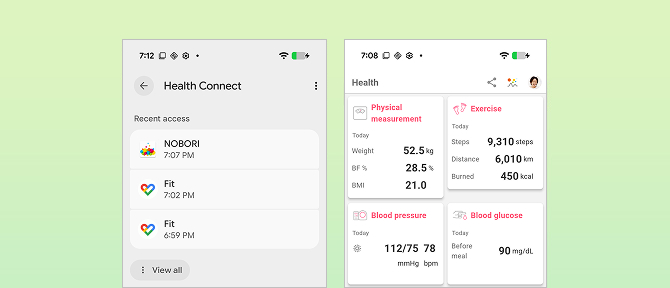
On Android, you can save your health information to NOBORI by linking it with Health Connect.
If data from Health Connect is not synced to NOBORI, the following issues may be the cause:
- Data has not been added to Health Connect.
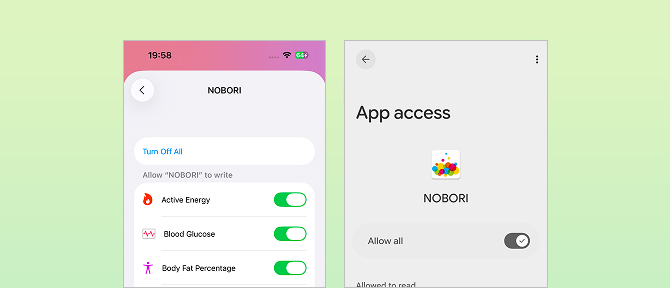
- Access permission for NOBORI has not been granted.
Check the above, and then resync the data within NOBORI to reload any data that the app failed to sync or update.
1. Check if data has been added to Health Connect
1. In the Settings app, select the Health Connect app.
Follow this instruction for the details on how to open the Health Connect app.
2. Tap on "Data and access."
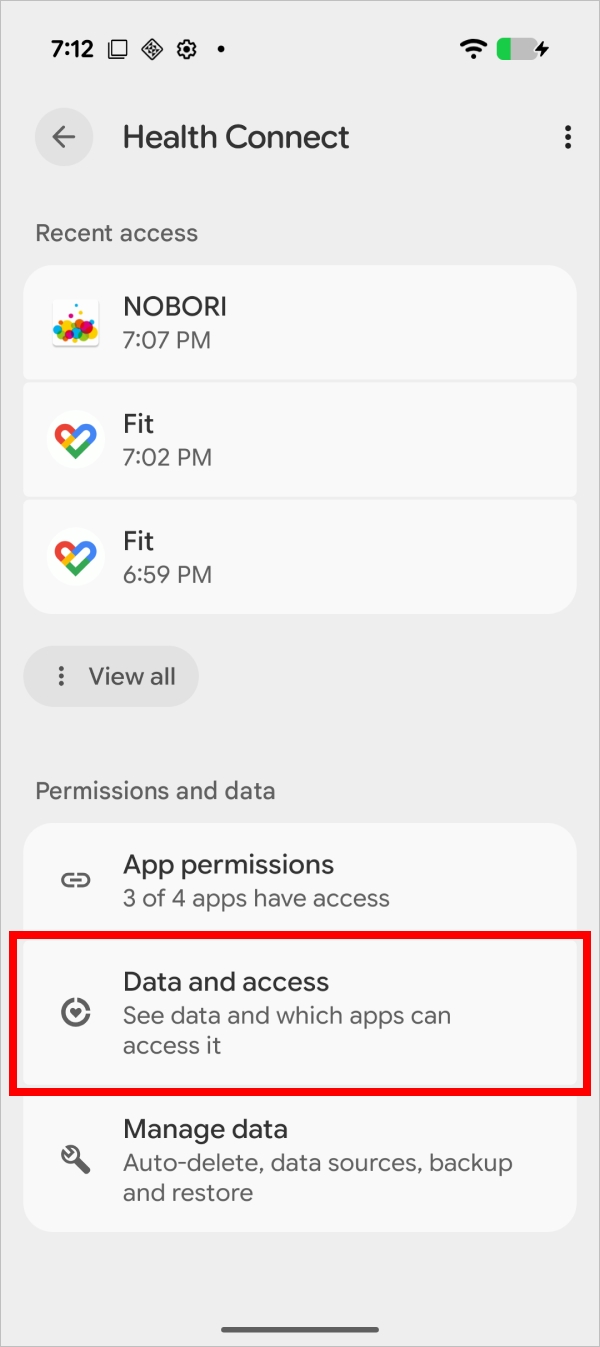
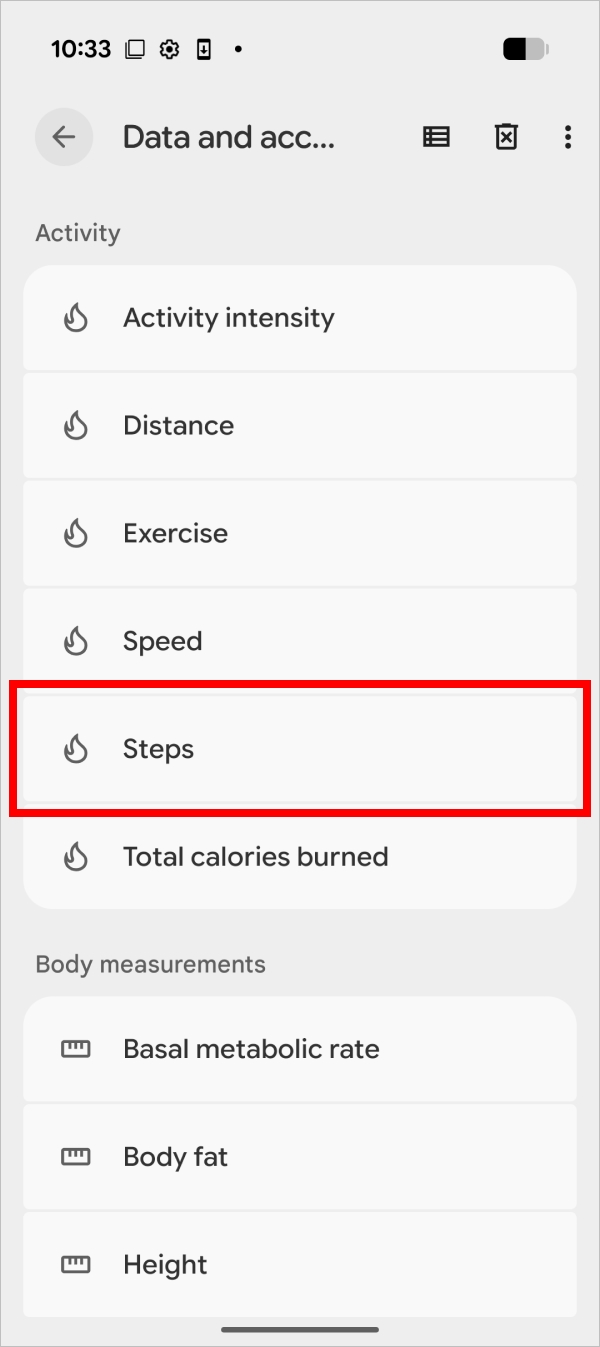
3. Tap on the category that fails to sync and check if any data has been added.
The example below illustrates checking step count data.
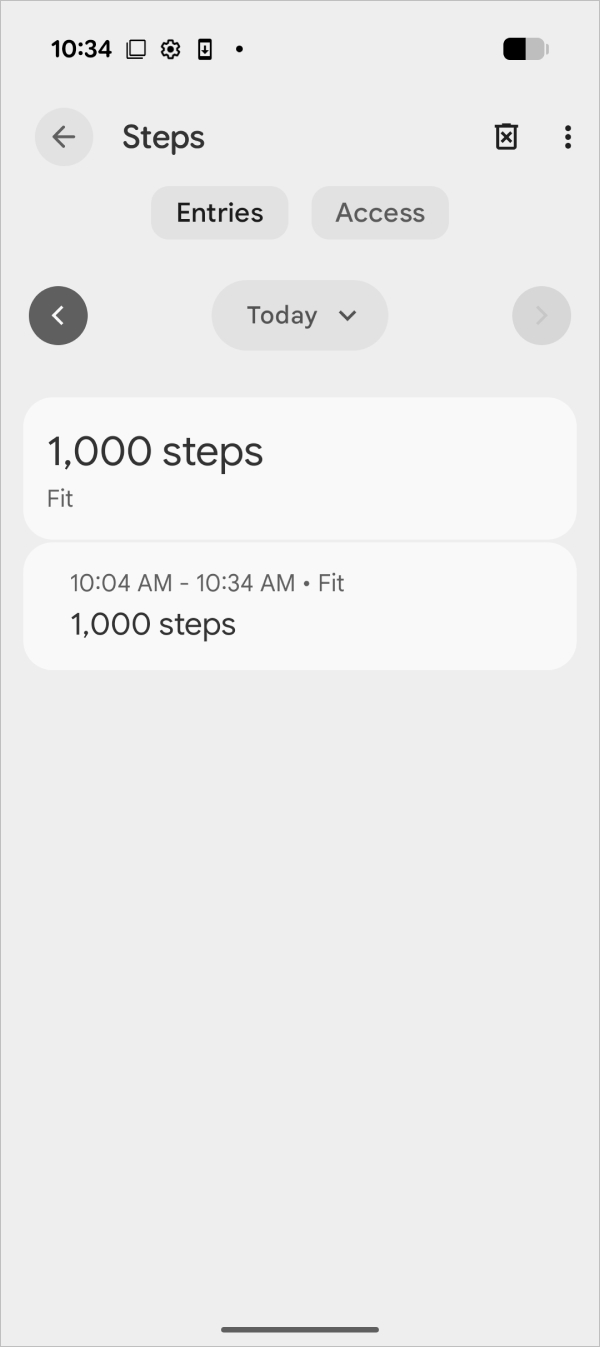
If data has not been added:
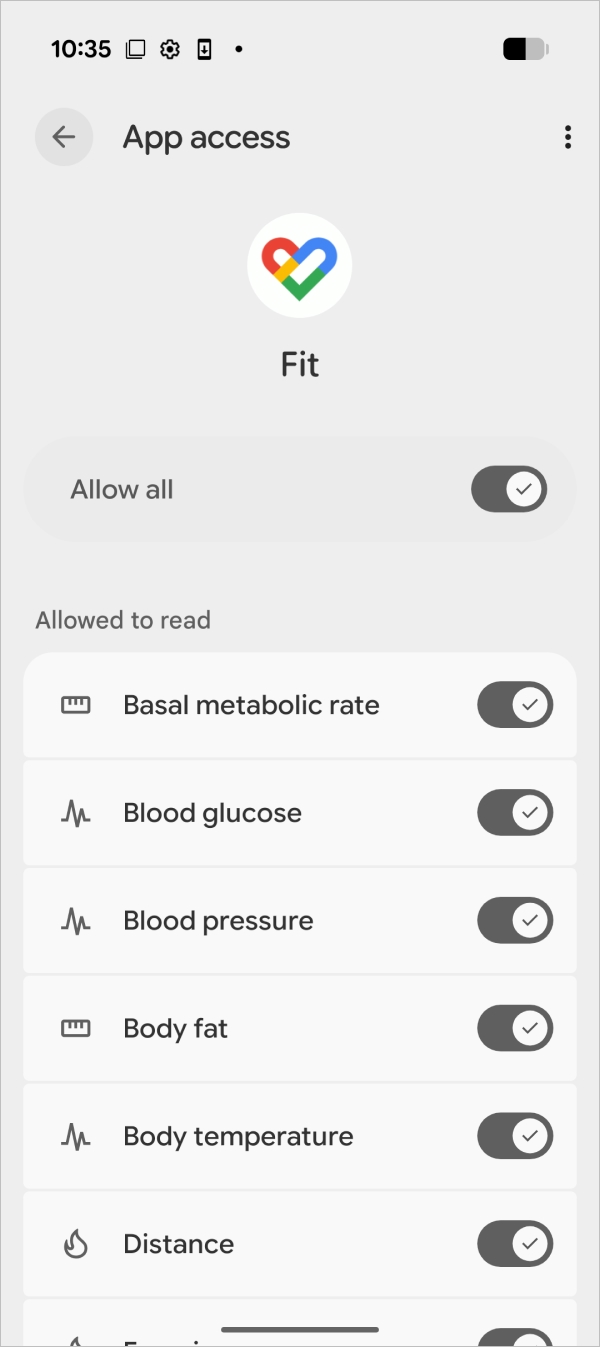
Follow this instruction to link Google Fit and Health Connect. If you are using other apps, please refer to the instructions for each respective app.
If another health app is already linked with Health Connect:
1. Open the Health Connect app. Follow this instruction for the details.
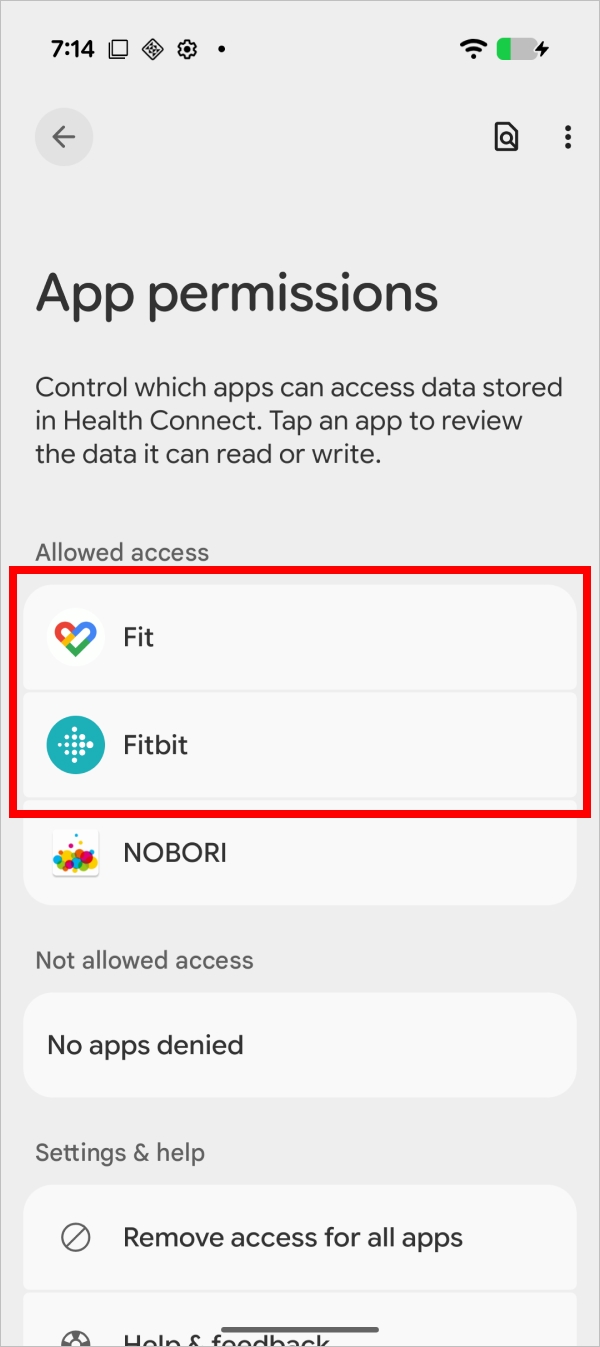
2. Tap on the health app and verify that its access permission is turned ON.
2. Check the permissions for NOBORI and Health Connect
1. In the Health Connect app, go to "App permissions" and check if access for NOBORI is turned ON.
For instructions, please see "Changing Health Connect Permissions".
If access permission is not turned ON, please grant it.
3. Resync NOBORI and Health Connect
Resync to reload data that failed to be synced or updated.
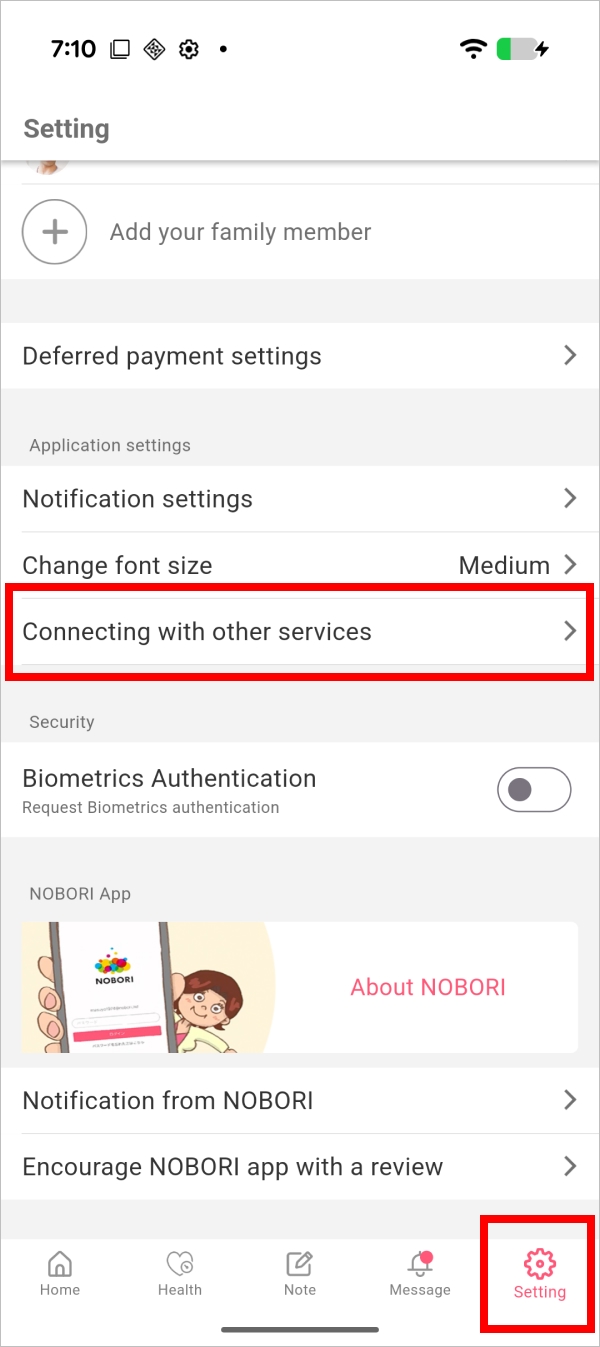
1. Launch the NOBORI app and tap "Settings" > "Connecting with other services."
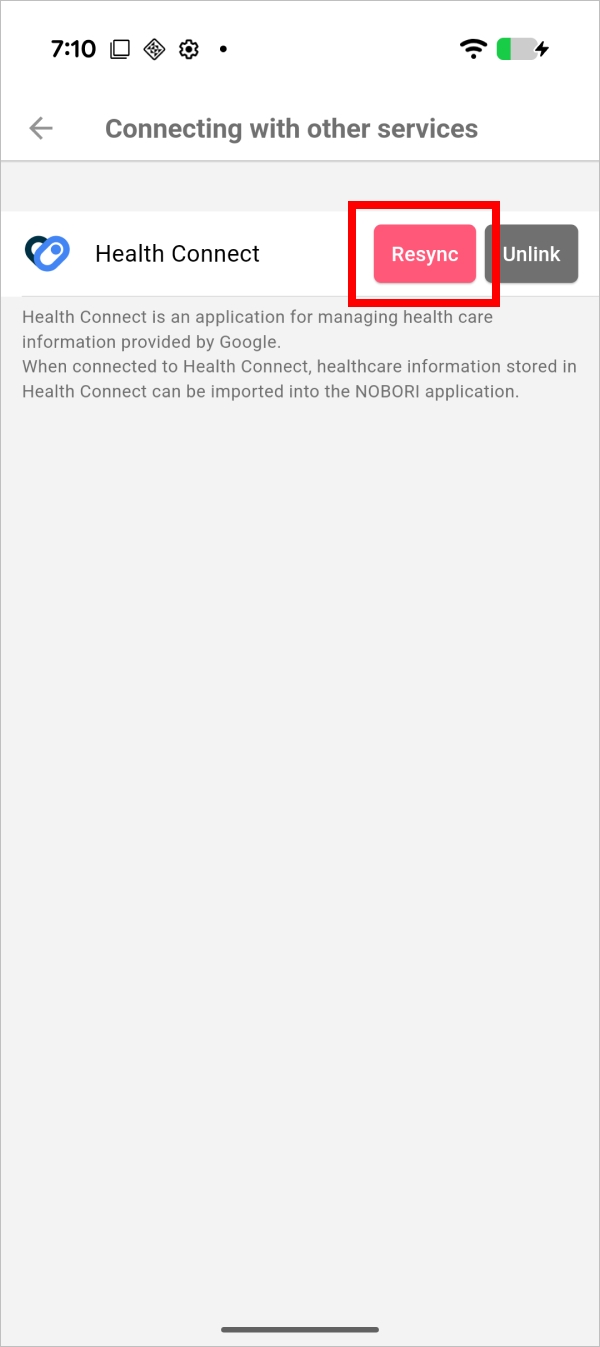
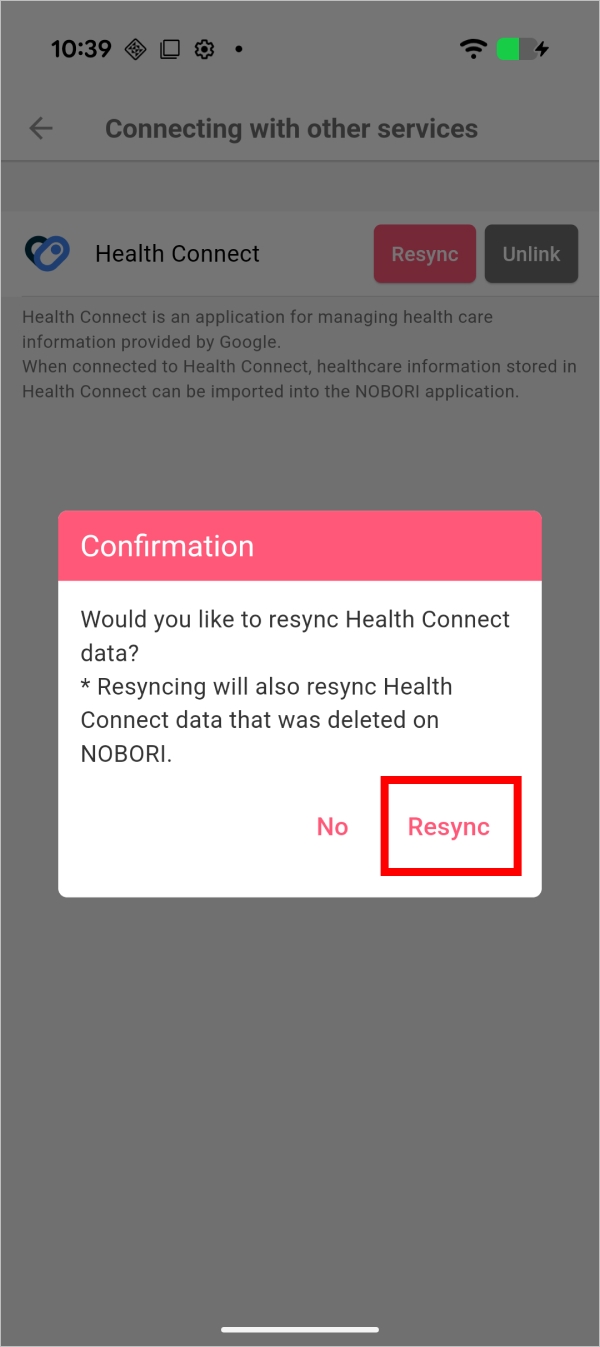
2. Tap "Resync."
3. Go to the "Health" tab.
All the data for the categories you have permitted should be properly reloaded.