
UPDATE 2025.12.10
Link NOBORI and Health Connect
Preparation
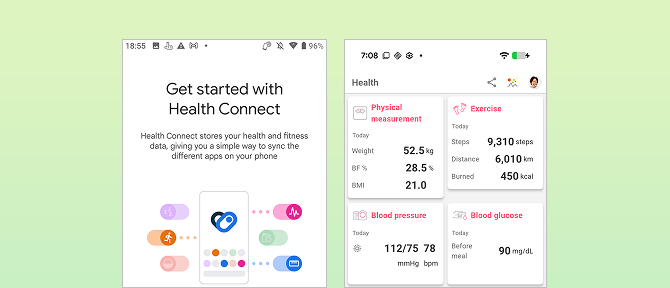
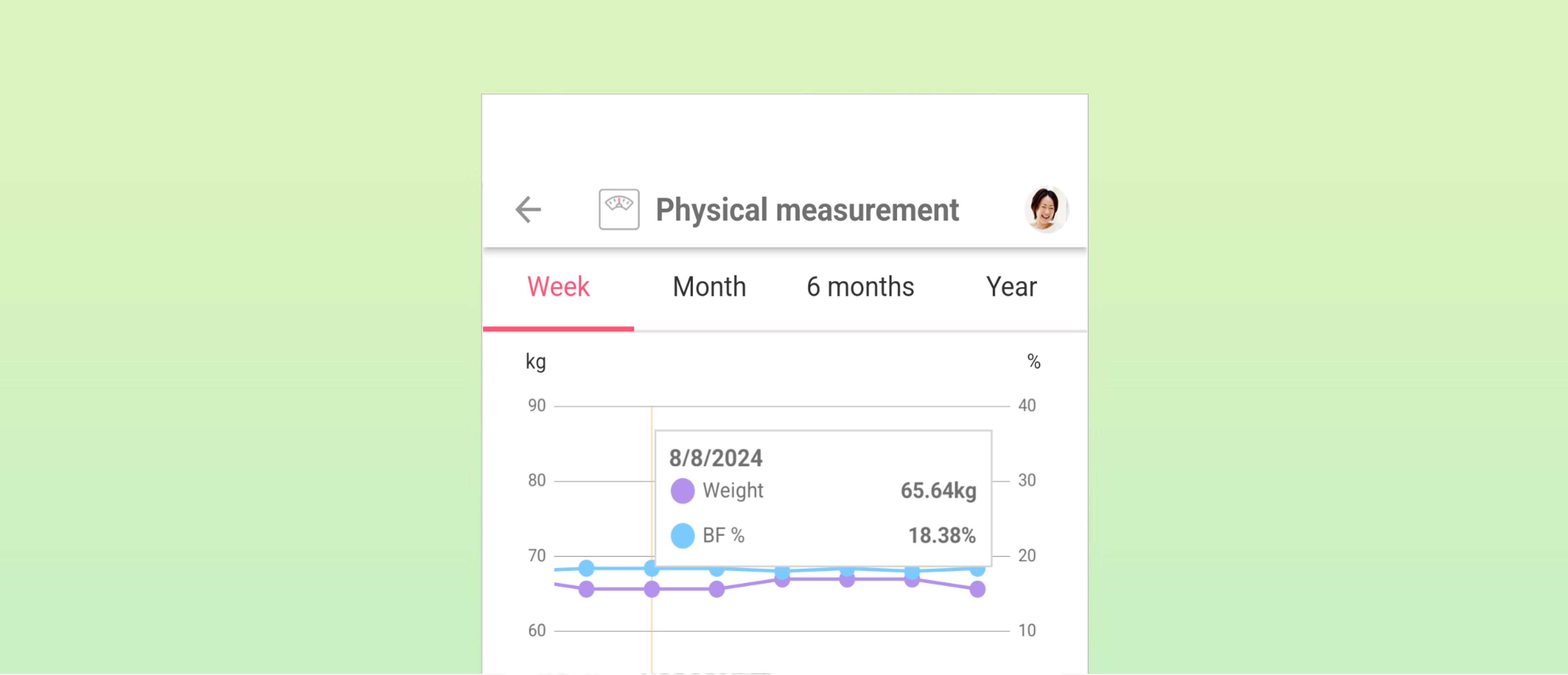
To view your healthcare information in NOBORI, you need to link a health app like Google Fit with Health Connect in advance and add the relevant data to Health Connect.
Note: While there are other health apps that can link with Health Connect, this instruction focuses solely on how to set up linking with Google Fit. To link another app, please refer to the instructions for that specific app.
Check if Health Connect is installed
OS compatibility for the Health Connect app
Note: The Health Connect app is configurable within the Settings app and does not appear on the home screen. To open the app, access it from the Settings app.
The detailed instructions are as follows.
- For users of Android 14 and later
- It is part of the Android system, so no installation is necessary.
- For users of Android 13 and earlier
- You need to install Health Connect from the Google Play Store. For the details, please see the instruction.
- For users of Android 8 and below
- The Health Connect app is not supported. Please update to Android 9 or higher.
Note: In the NOBORI app, you can continue to use functions other than linking with Health Connect.
- The Health Connect app is not supported. Please update to Android 9 or higher.
How to install the Health Connect app
For Android 13 or earlier, install it from the Play Store.


How to open the Health Connect app
Note: The location of the Health Connect app may differ depending on the model. Please refer to the guide for your specific model for details.
The following is an example for Pixel 9.
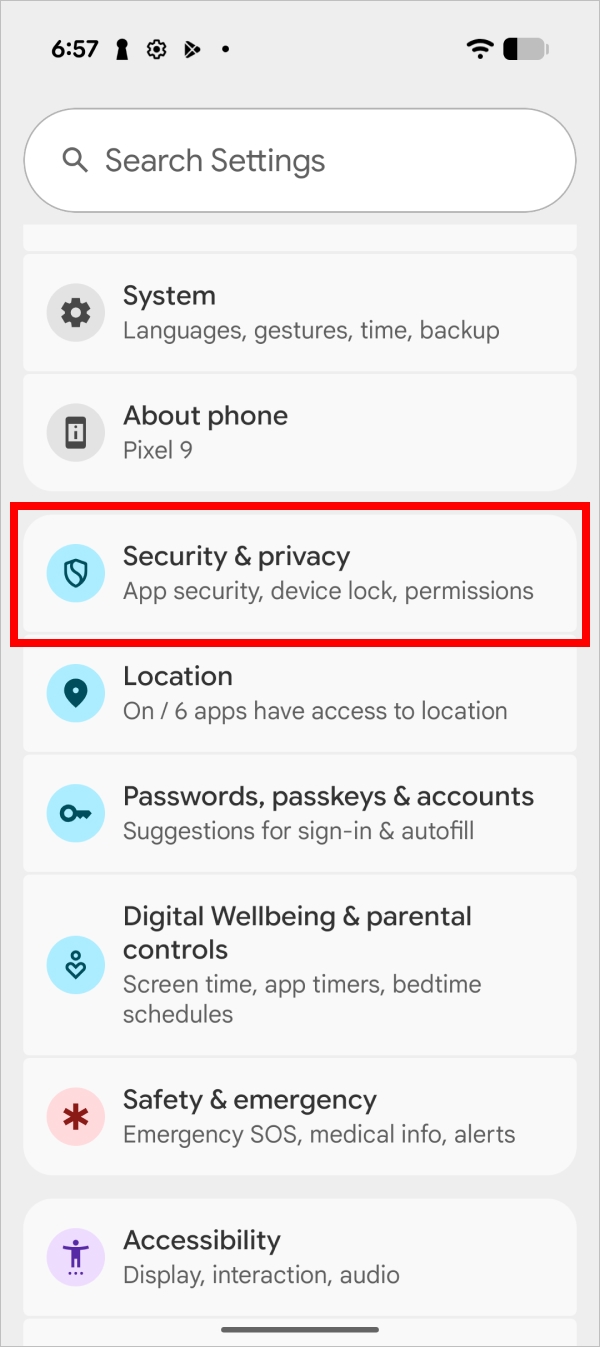
1. Launch the Settings app > Tap on "Security & privacy".
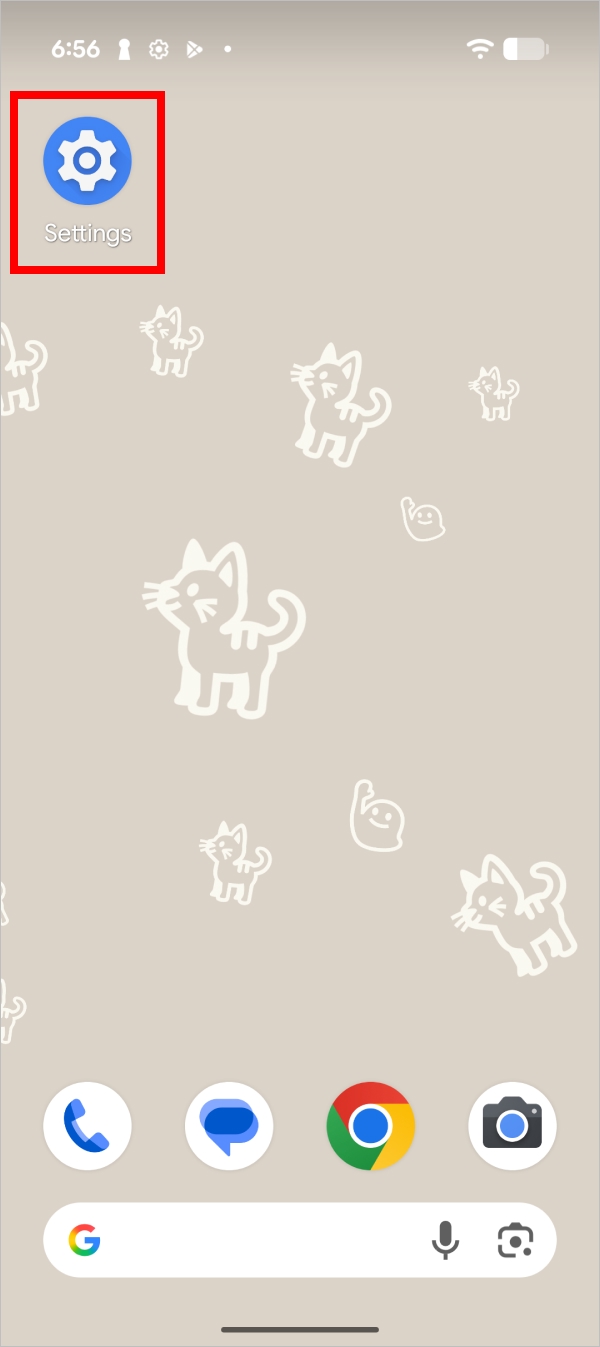
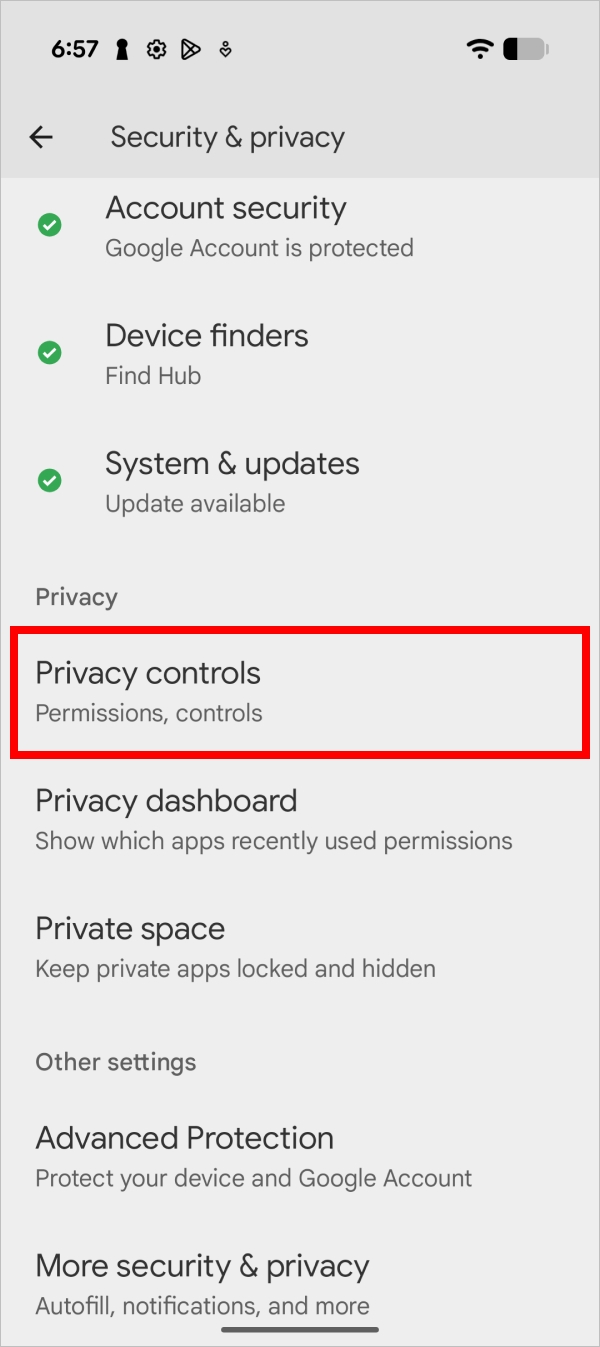
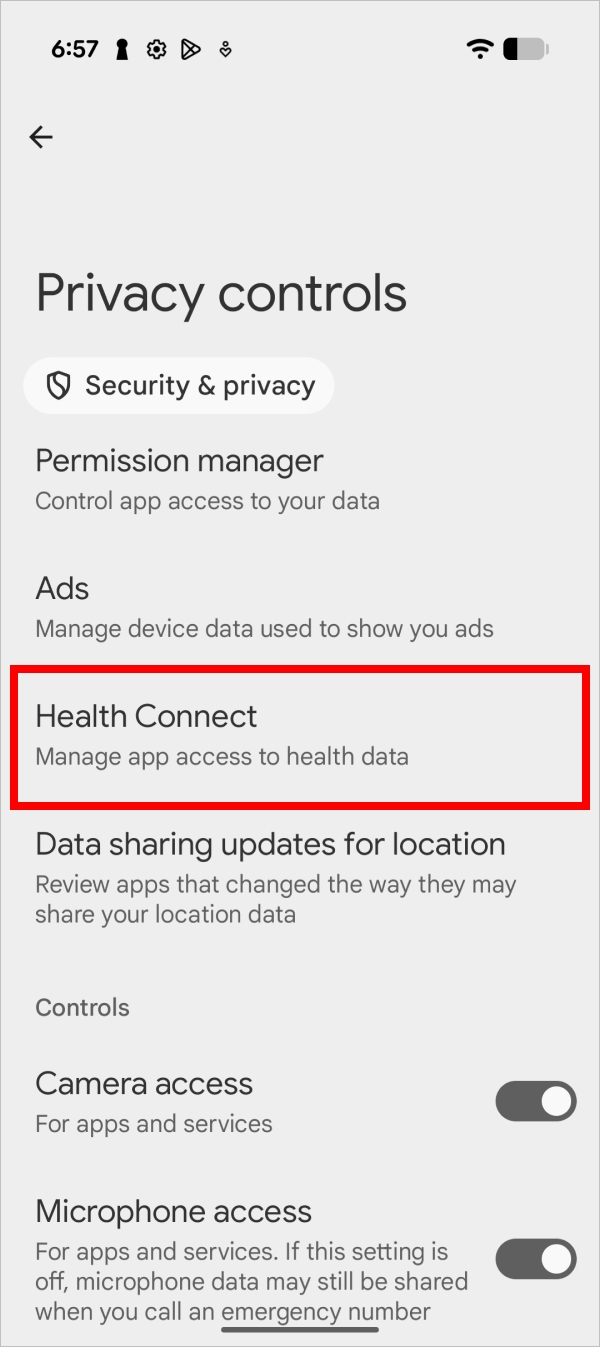
2. From "Privacy controls", launch the "Health Connect" app.
Link Google Fit and Health Connect
While there are other health apps that can link with Health Connect, this instruction focuses solely on how to set up linking with Google Fit. To link another app, please refer to the instructions for that specific app.
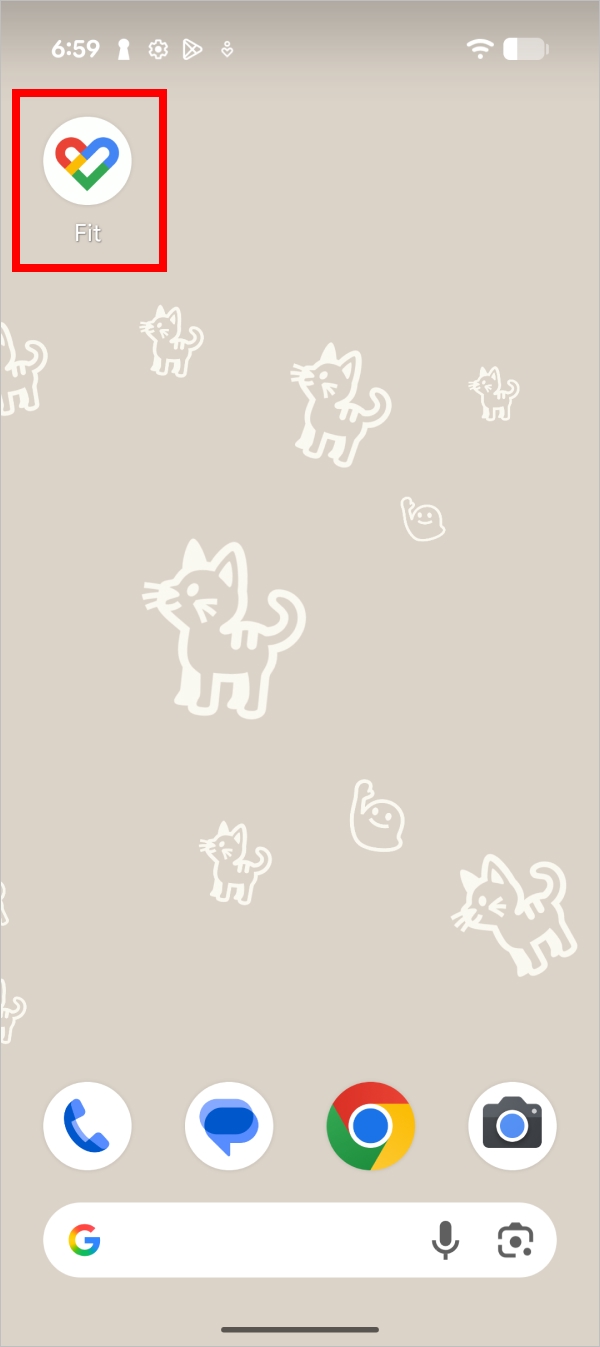
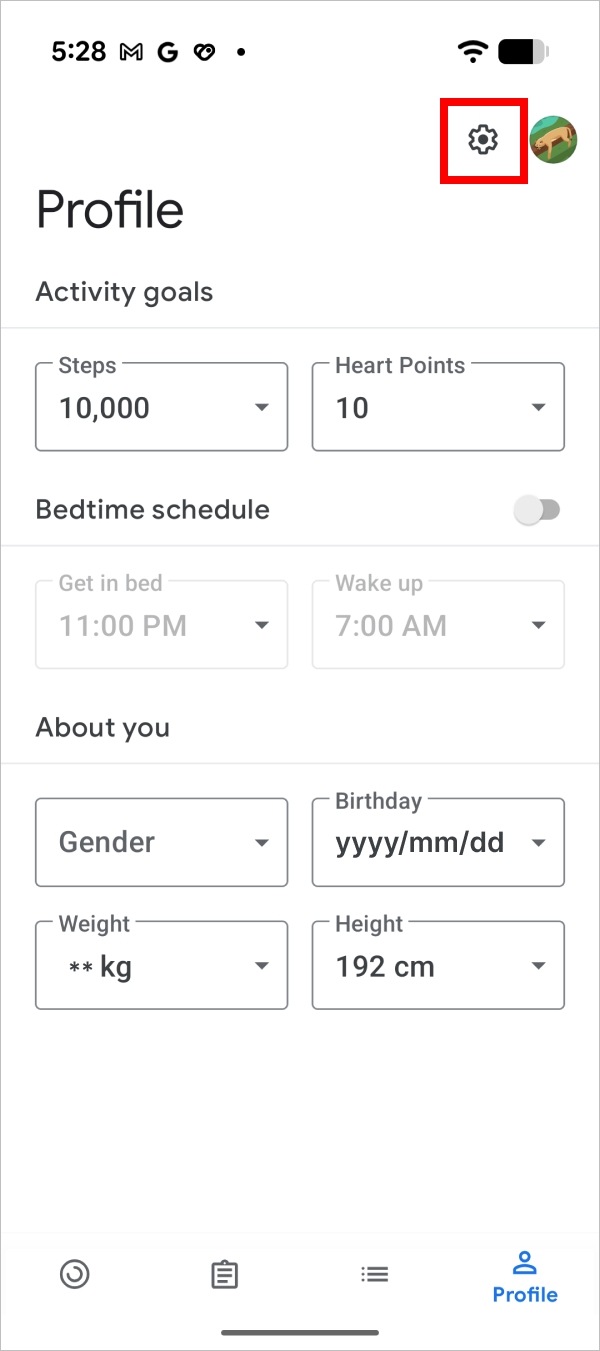
1. Launch Google Fit and tap "Profile" > Tap the settings icon in the top right.
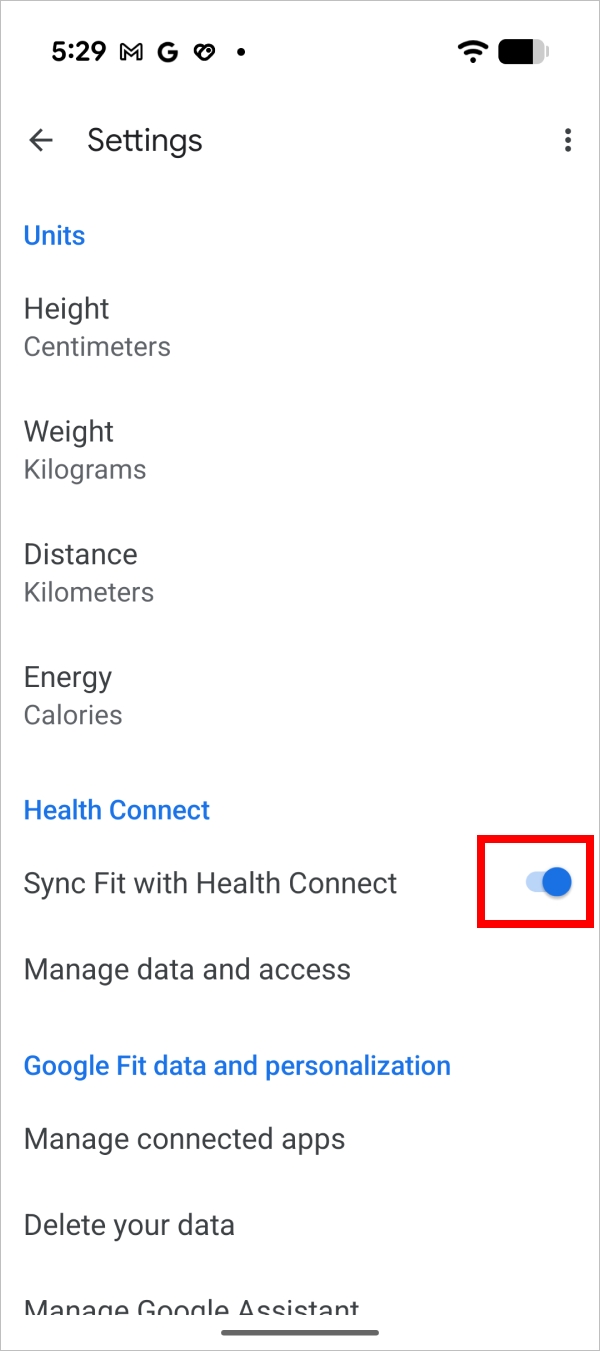
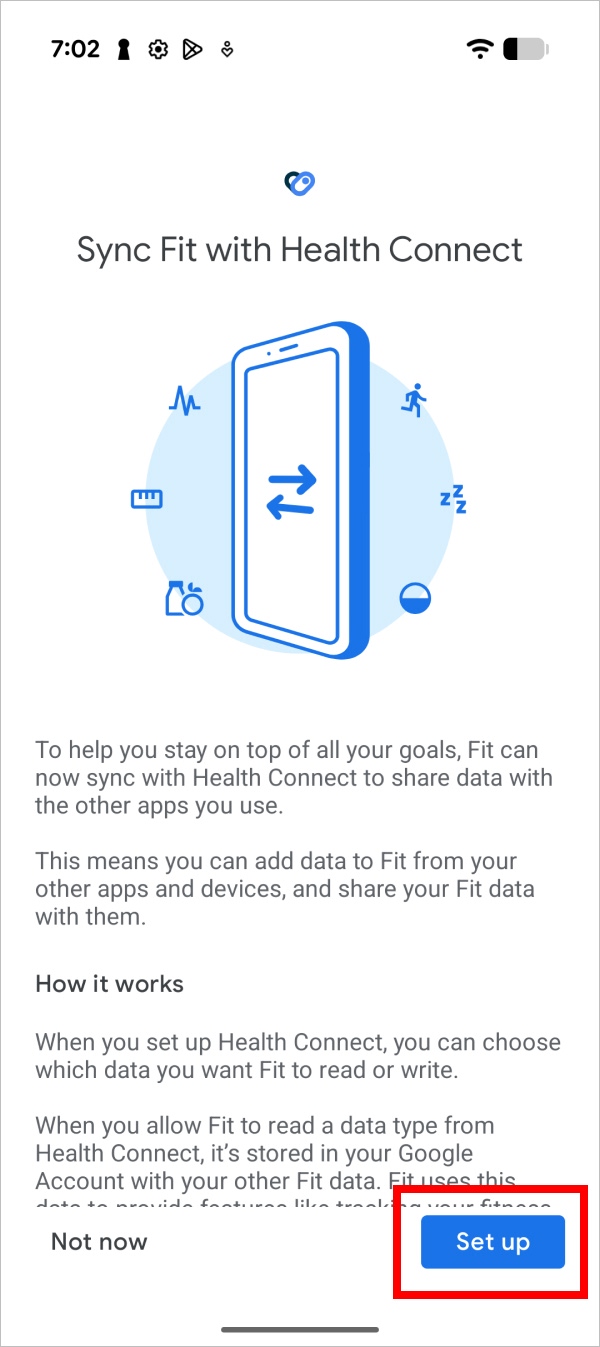
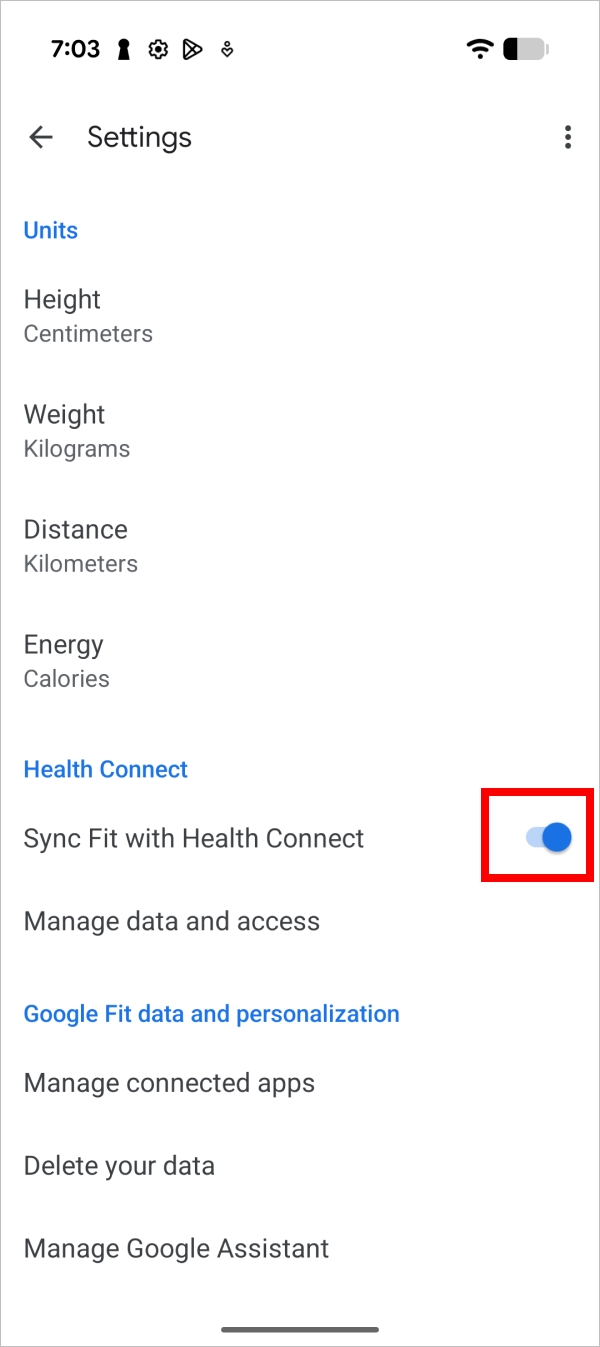
2. Turn ON "Sync Fit with Health Connect" > Tap the "Set up" button.
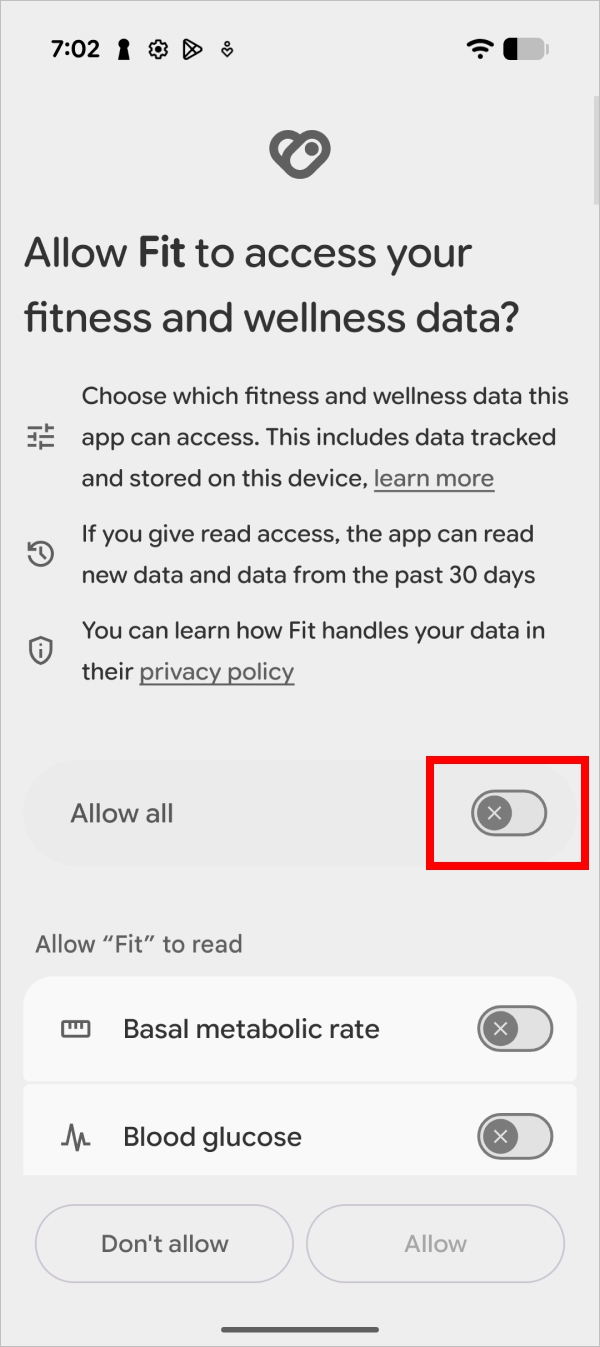
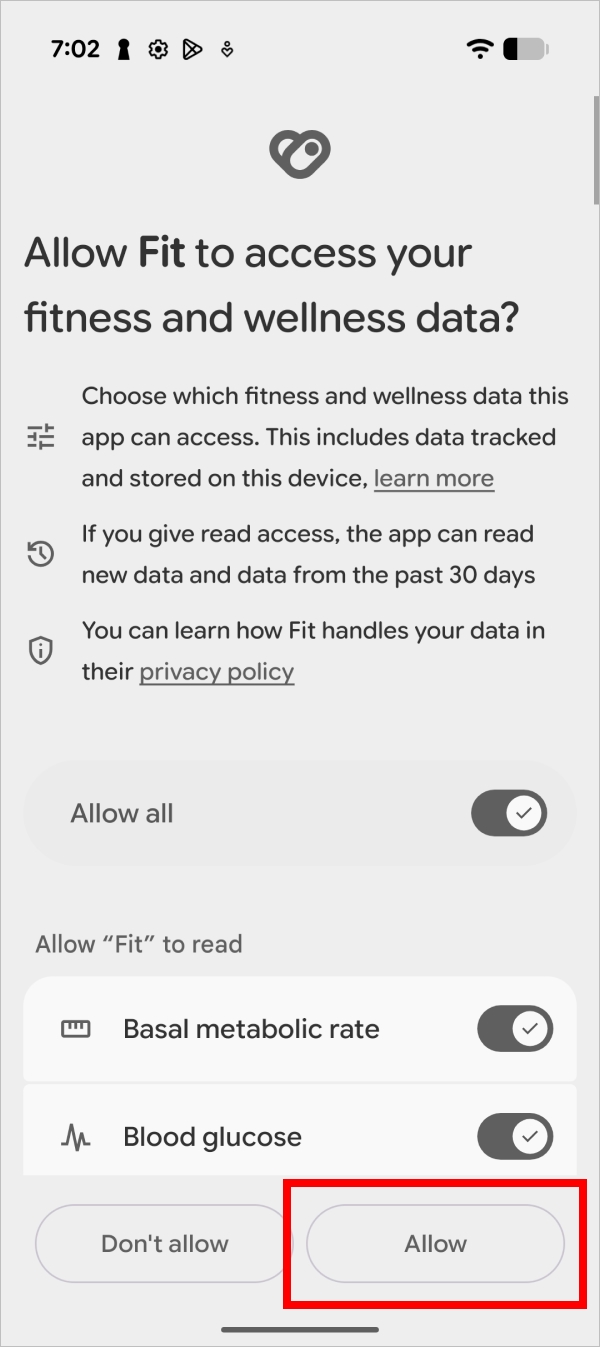
3. For items to allow in Google Fit, turn ON "Allow all" and tap "Allow."
You can also turn off individual items you do not want to access.
Note: Turning off write permission will prevent data from saving to Health Connect.
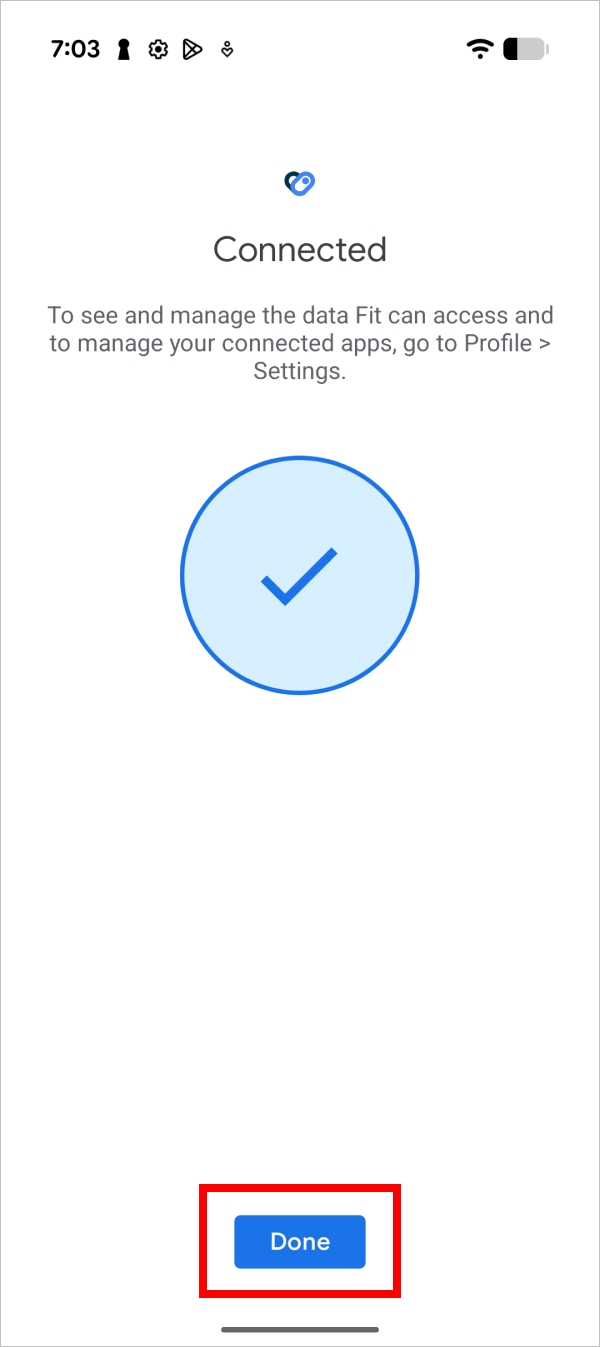
4. Once connection is complete, "Sync Fit with Health Connect" turns ON, indicating the linkage is complete.
In the case of Google Fit, Health Connect will access the Google Fit data stored within past 30 days before linking, and all new Google Fit data stored thereafter.
5. Check if data has been added to Health Connect
If Health Connect contains no data, nothing will be displayed in NOBORI. Please double-check in advance if linking is complete.
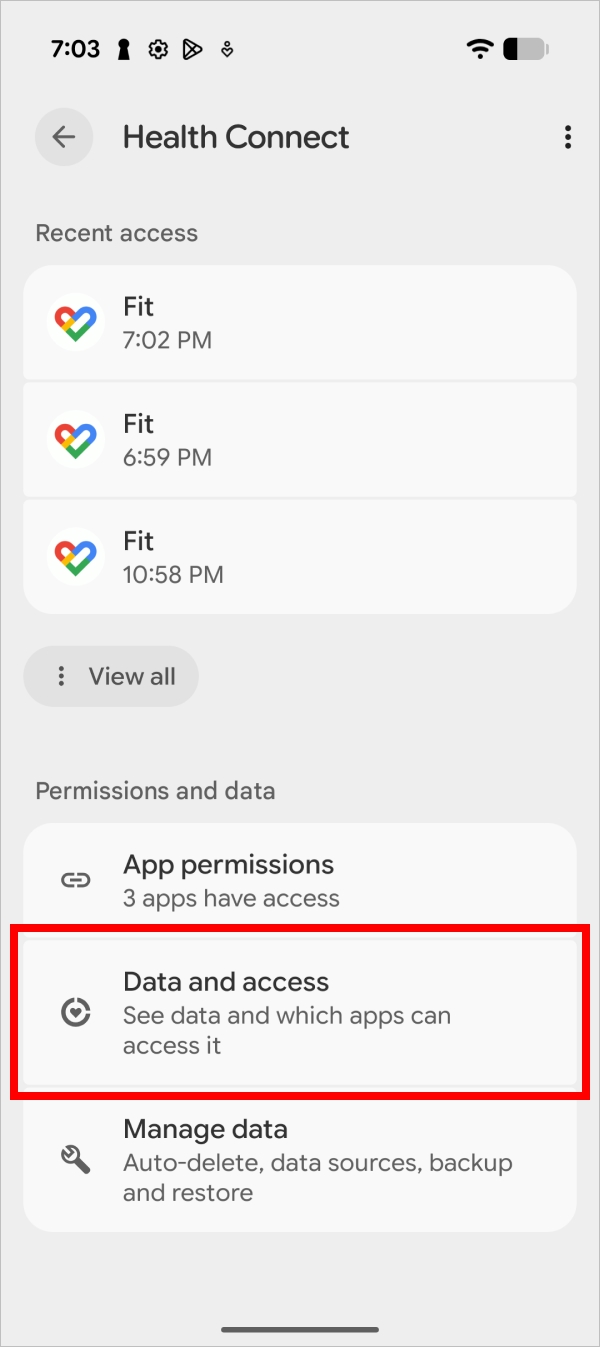
1. Launch the Health Connect app and tap "Data and access."
Check here for the details on how to open the Health Connect app.
2. To check the data within the Health Connect app, tap the item to choose.
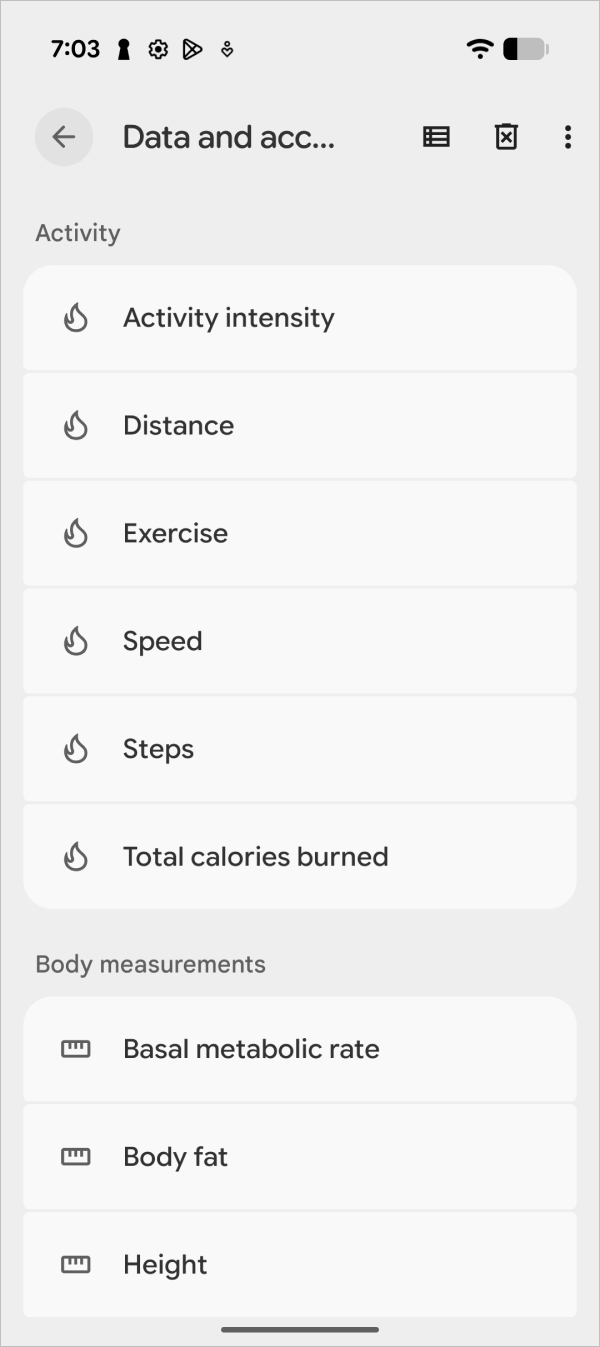
Linking NOBORI and Health Connect
Link NOBORI and Health Connect
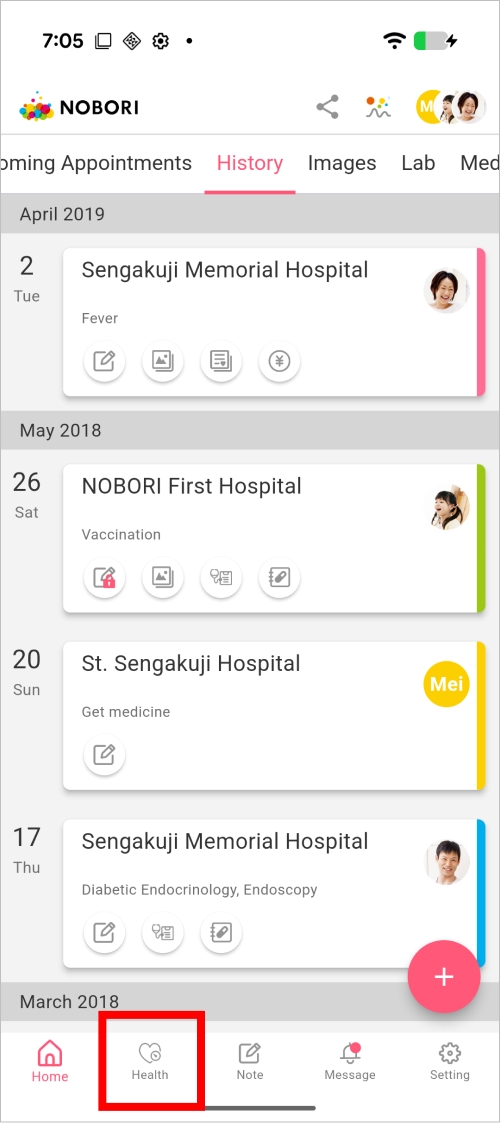
1. Tap the "Health" tab and proceed to "Connect Health Connect".
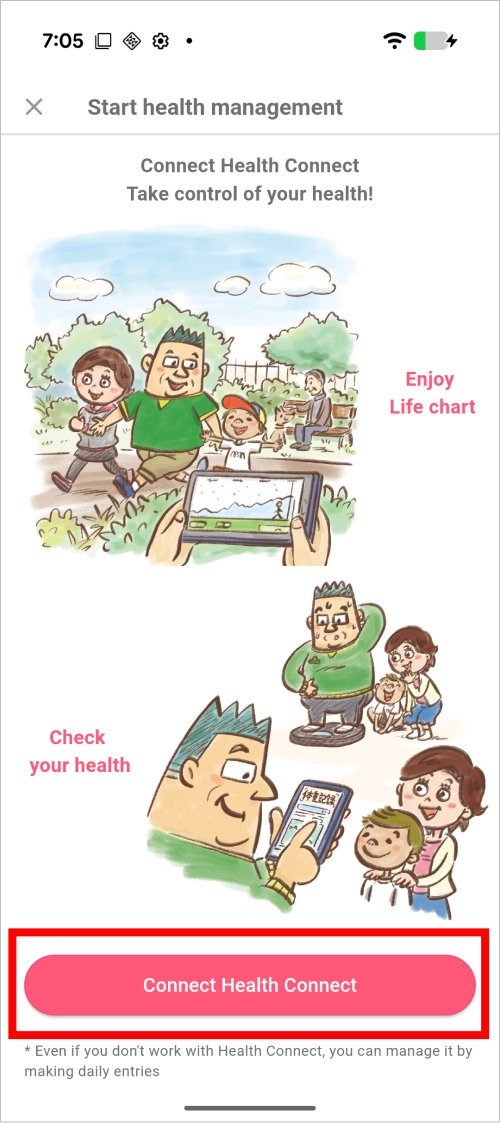
2. Confirm the steps for setting up the link with Health Connect.
2-1. After verifying that your health app like Google Fit is linked with Health Connect, tap "Proceed to the NOBORI integration after completing the connection settings".
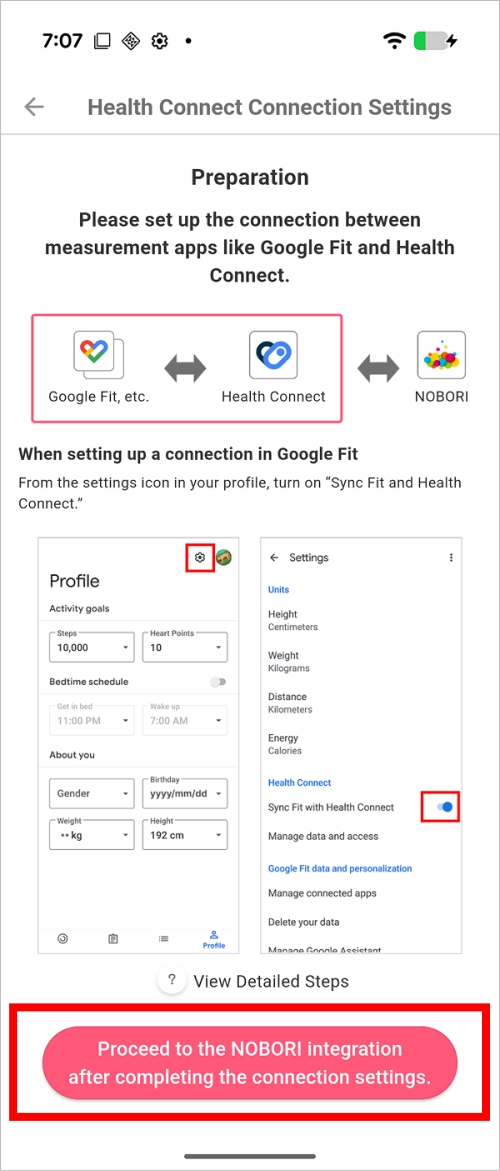
2-1. Double-check the details and tap "Connect with Health Connect."
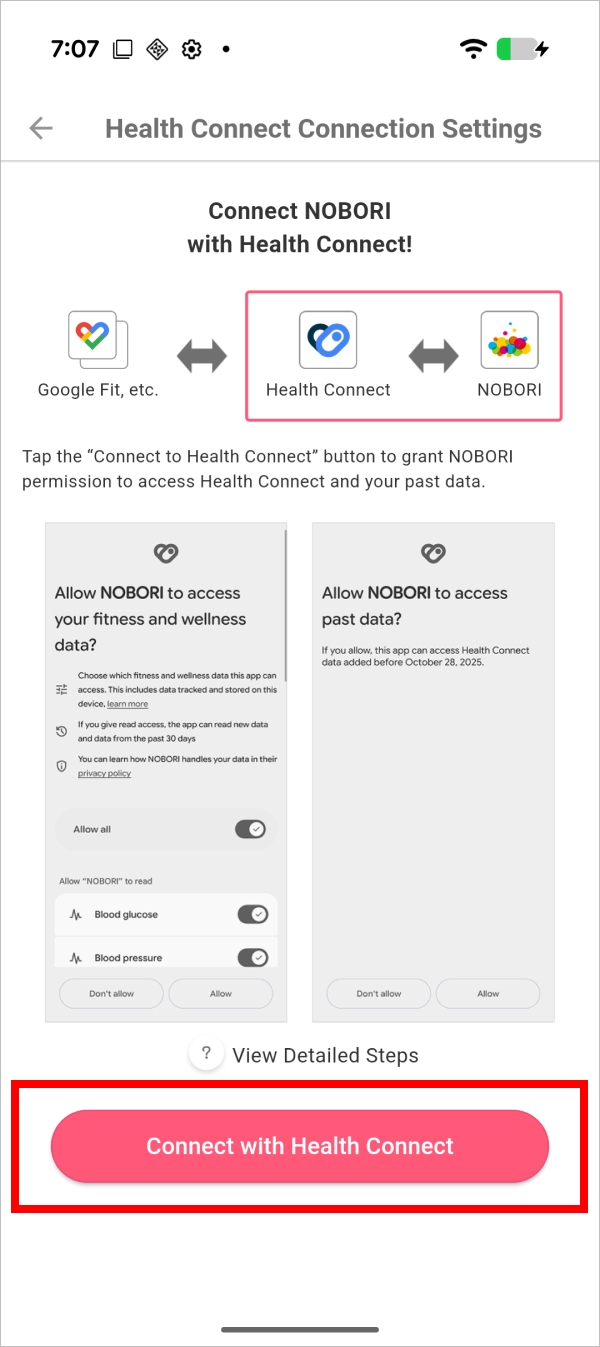
3. Set up linking with Health Connect.
3-1. Allow access to physical activity data. The following dialog will only appear on Android 10 and above. For Android 9 and below, please proceed to the next step.
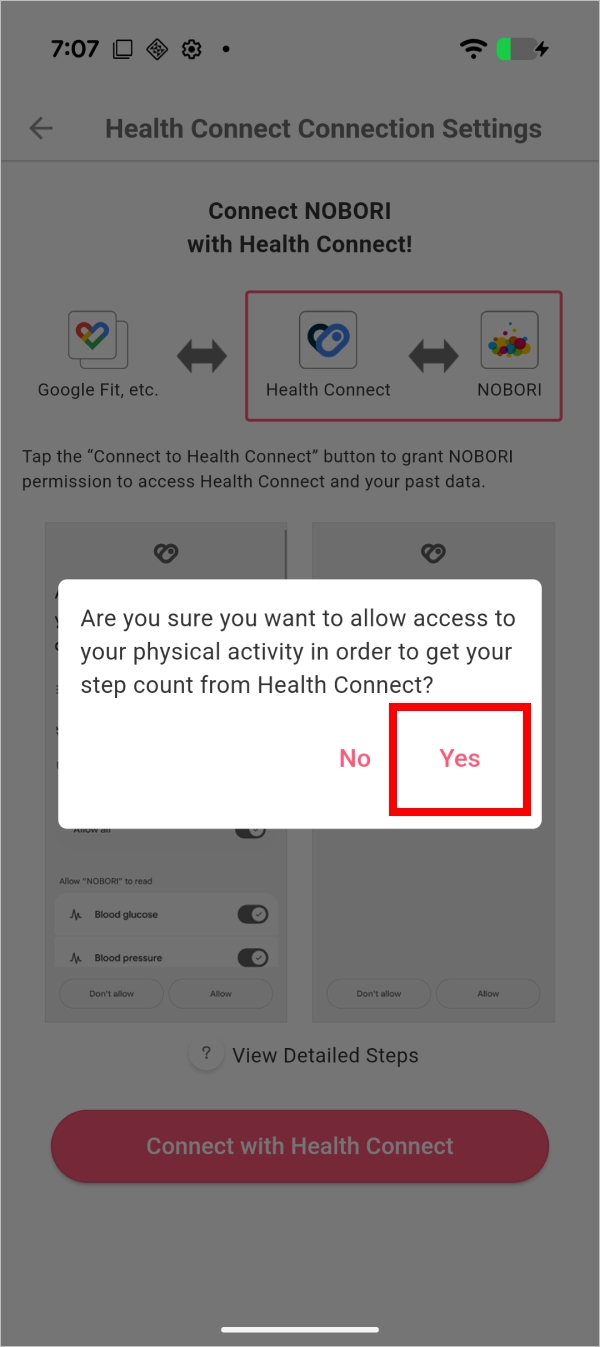
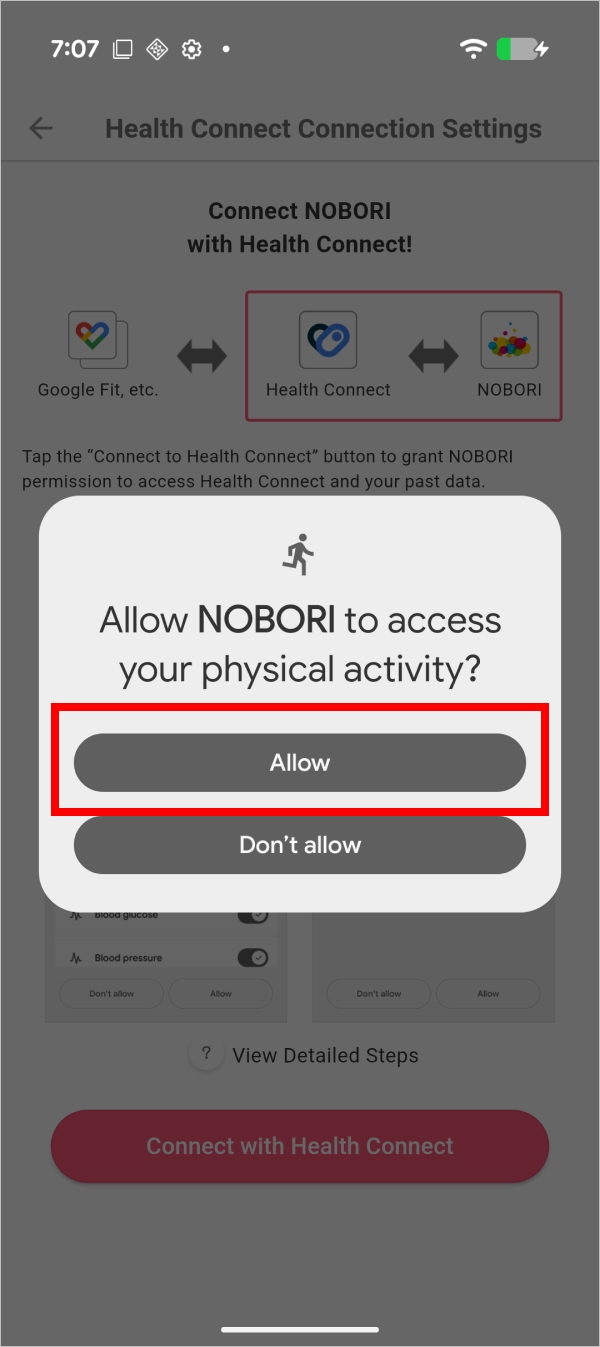
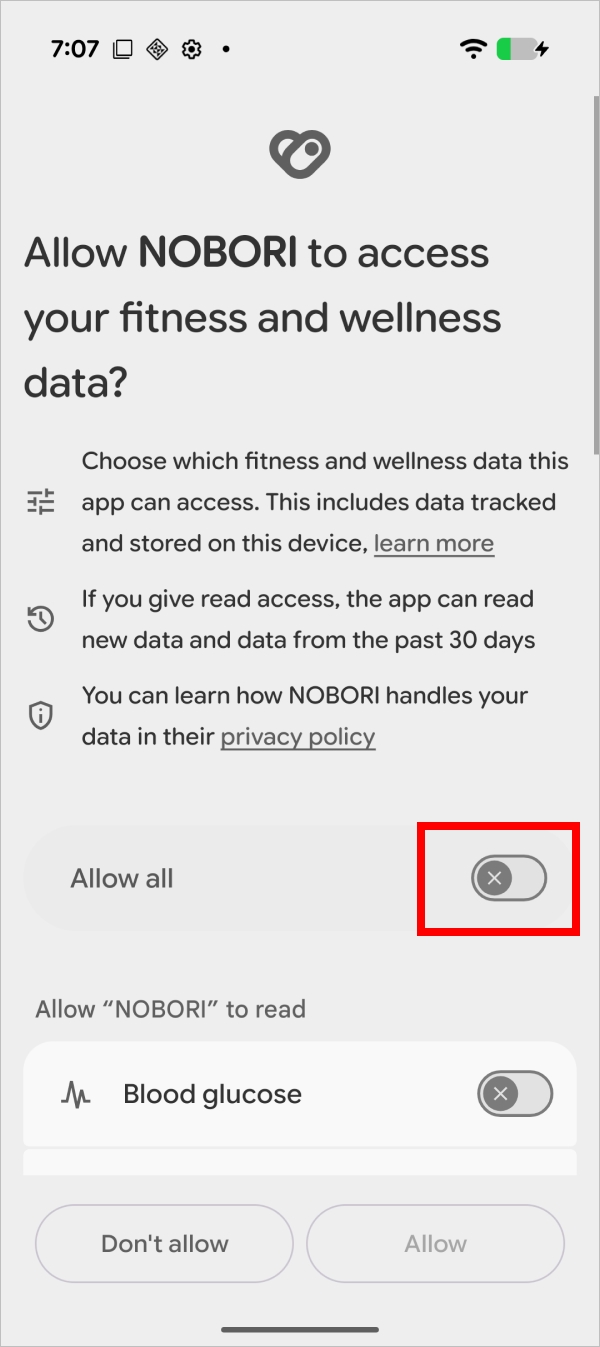
3-2. To select items to allow access to in NOBORI, turn ON "Allow all" and then tap "Allow."
Turn off individual items you do not want to access.
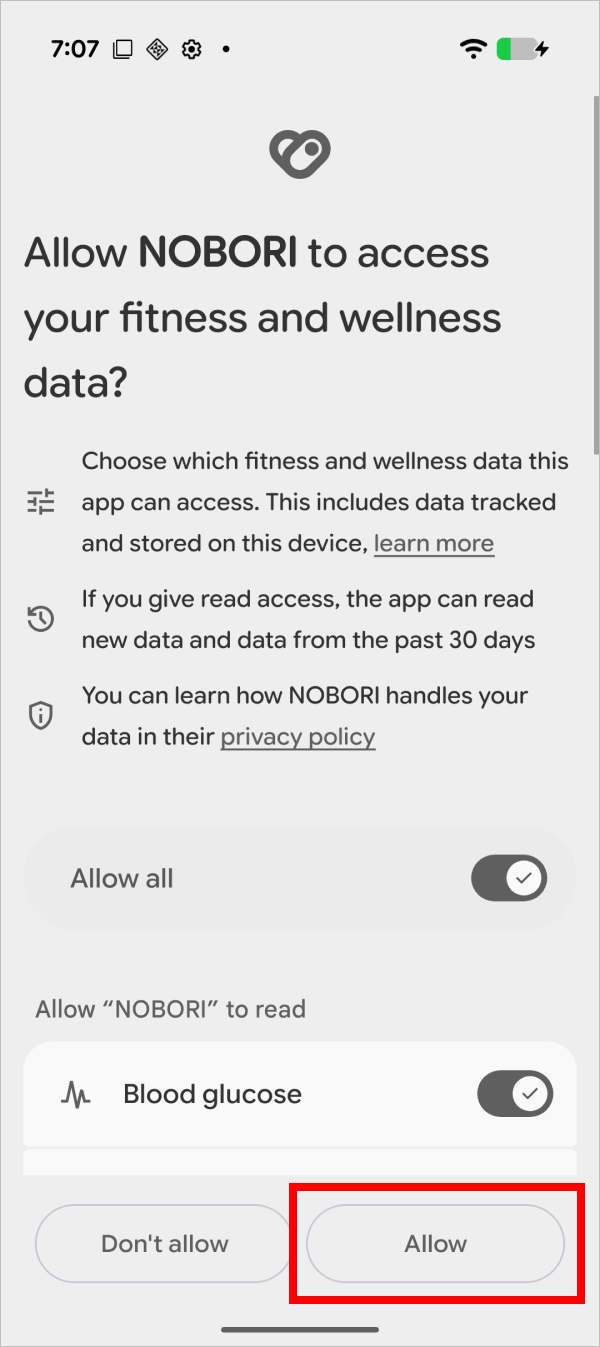
3-3. Grant access permission for past data.
By default, after linking with Health Connect, the app will be allowed to access all past data stored within 30 days before the linking date and any data added thereafter. To grant NOBORI access to the data from Health Connect older than that, allow access to past data.
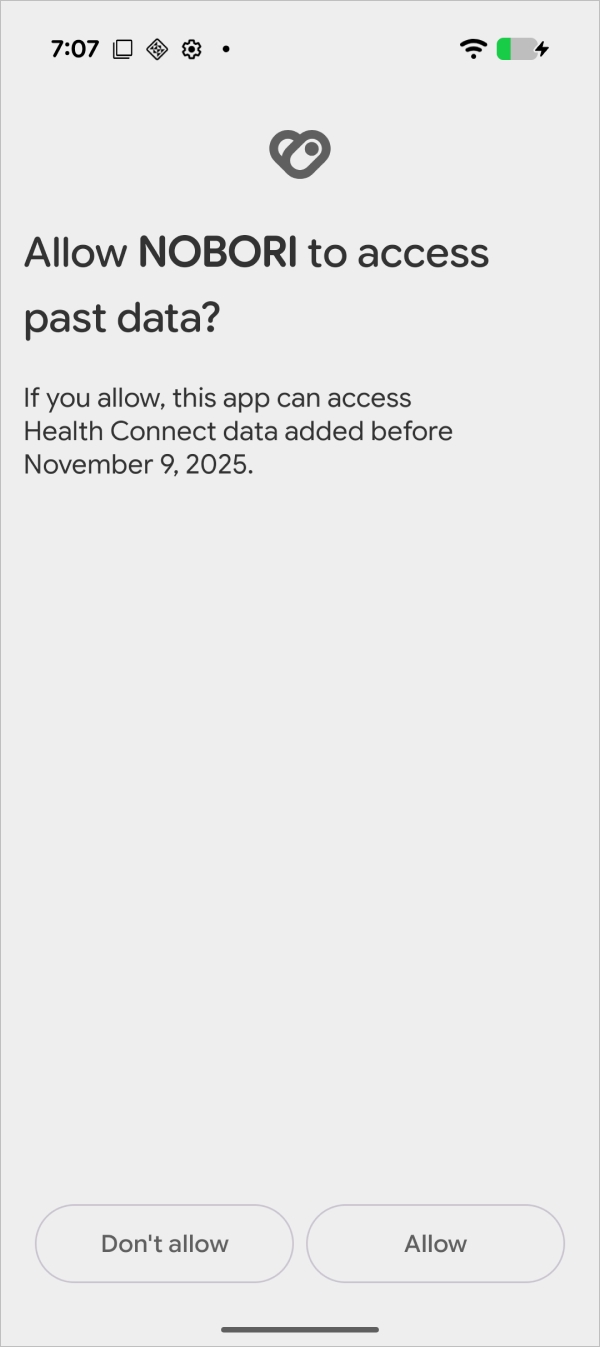
4. Complete linking
Once the linkage is set up, the app will auto-load your health information on launching.
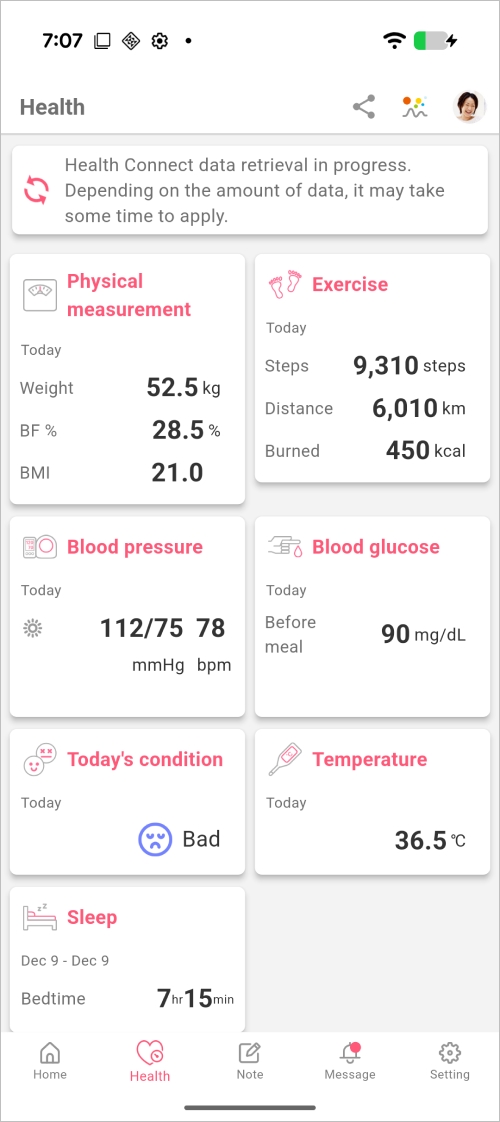
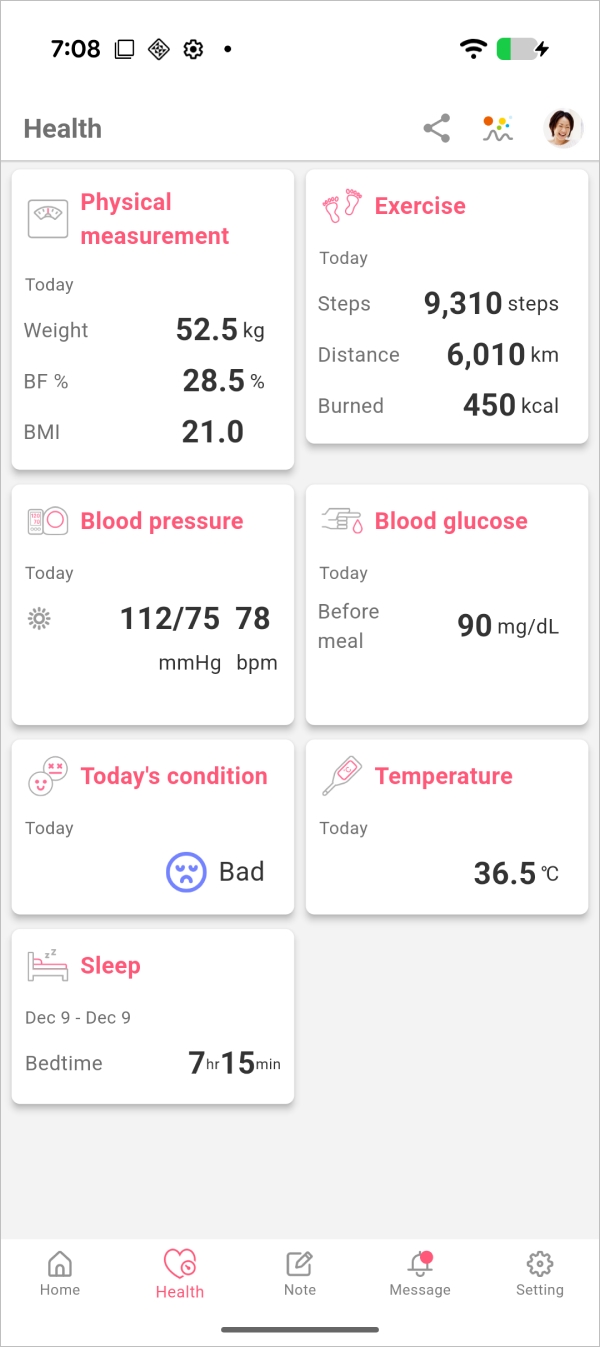
What if I have Google Fit linked to a version older than 3.18.0?
If you already have your Google Fit linked to an older version of the app, the settings window will differ. Please follow the instruction below. (Note: Only data stored after the latest record date linked from Google Fit to NOBORI will be imported from Health Connect to NOBORI.)
1. Check if Google Fit and Health Connect are linked.
To continue linking data from Google Fit to NOBORI, please follow this instruction.
2. Tap "Proceed to Health Connect settings."
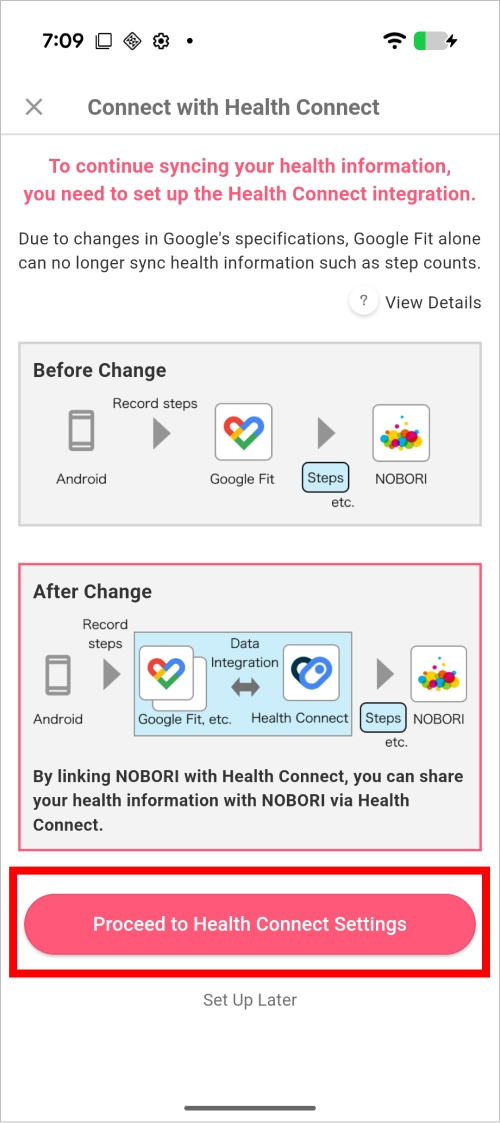
For subsequent steps, please see the Health Connect settings.
Unlinking Health Connect from NOBORI
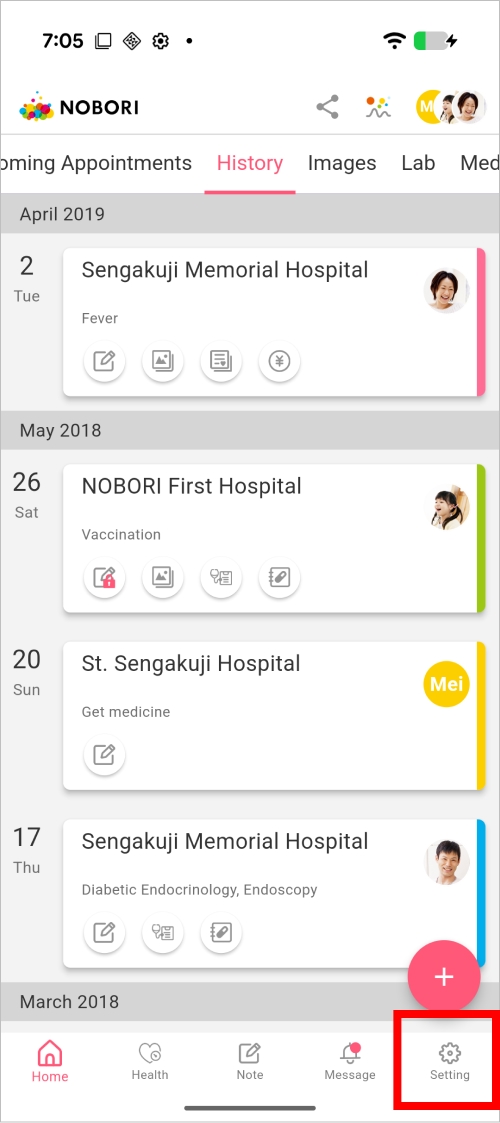
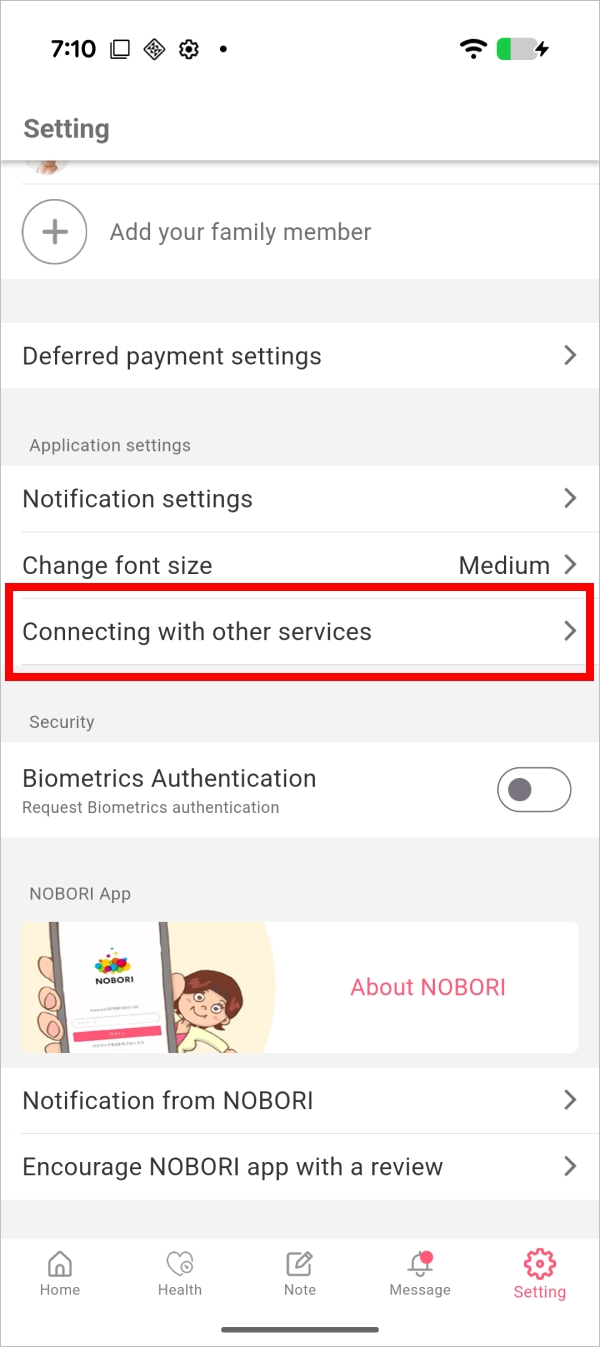
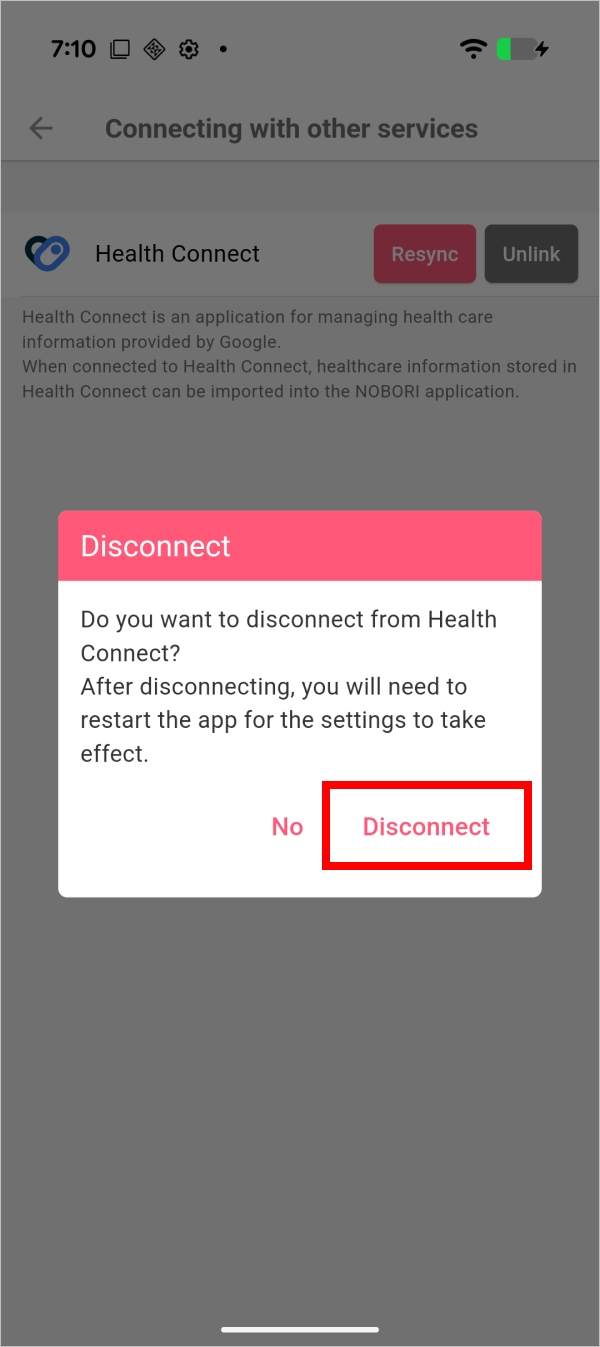
1. Tap the "Setting" tab > "Connecting with other services".
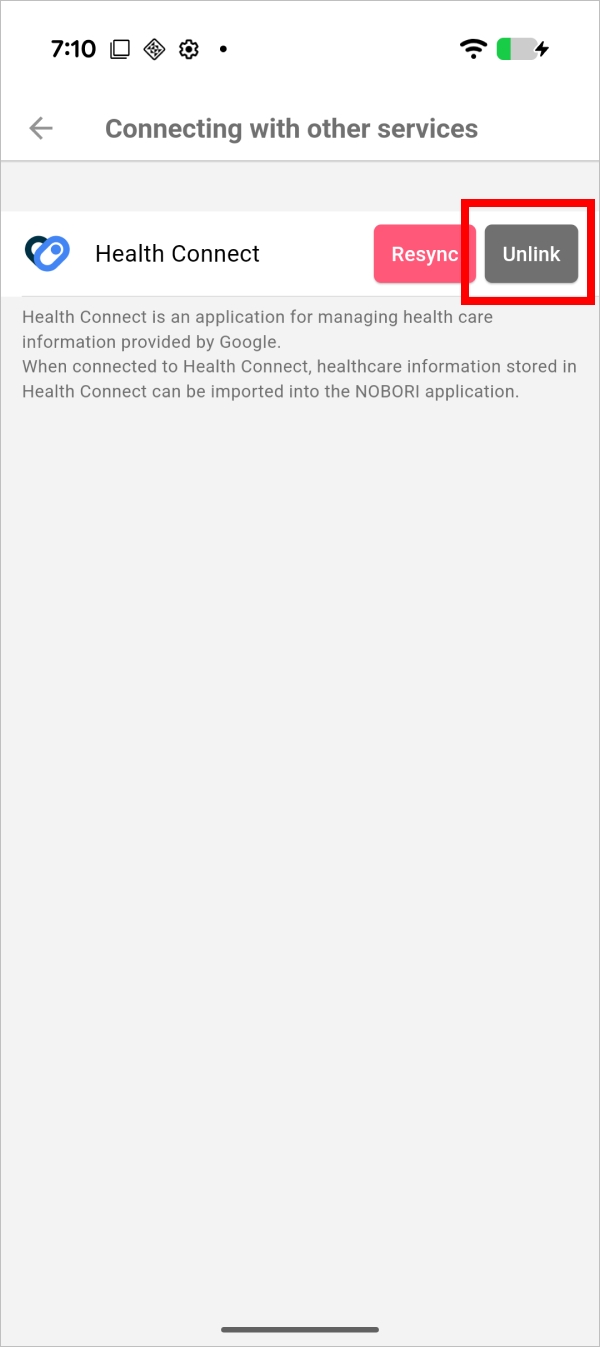
2. Tap "Unlink."
2. In the dialog box, tap "Disconnect" and restart the app.
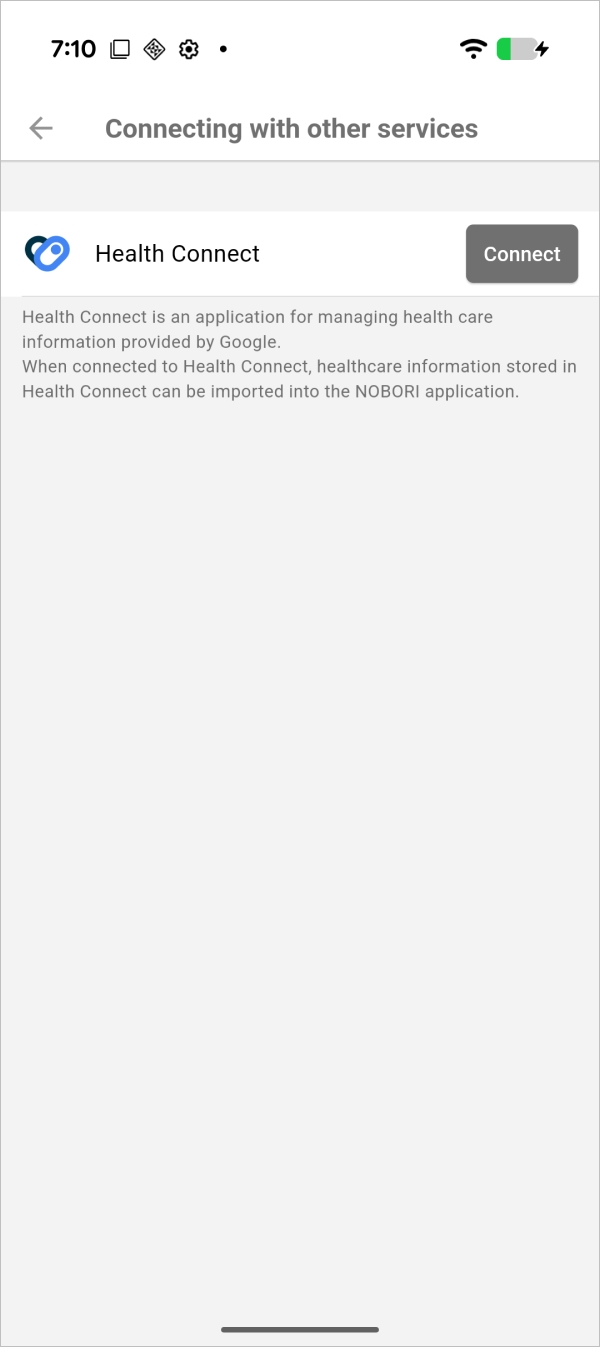
Restart the app to apply the settings.