
UPDATE 2026.09.08
Using Myna Reception (My Number Card Reception)
Table of Contents
- Conditions for using Myna Reception from the NOBORI app
- Preparations needed before using Myna Reception
- Turning ON Myna Reception in the NOBORI app and completing return-visit reception
- Registering consent on the Myna Home Reception Web
- Verifying identity using the Myna App
- Registering the results of qualification confirmation
- If qualification confirmation fails
- If [Already Received (Myna Reception Error)] is displayed in the app
- Other
1: Conditions for Using Myna Reception from the NOBORI App
The Myna Reception feature can be used if the following two conditions are met:
1. The medical institution you plan to use is a NOBORI partner institution and has implemented the Myna Reception feature.
2. Due to reasons such as a fever outpatient clinic or hospitalization, qualification confirmation needs to be carried out through a different process than usual.
*Note: Depending on the medical institution you plan to use, Myna Reception may not be available after return-visit reception has already been completed. For details, please see [8: If [Already Received (Myna Reception Error)] is Displayed in the App.}
2: Preparations Needed Before Using Myna Reception
To use the Myna Reception feature, you need: 1) a My Number Card, 2) a smartphone compatible with reading My Number Cards, and 3) the Myna App (formerly known as the Mynaportal App).
If you have not installed the Myna App on your smartphone, iPhone users can download the app here, and Android users can download it here.
If you have already installed it, there is no need to reinstall it.
Also, if your smartphone is not compatible with the Myna App, you will not be able to use Myna Reception. You can check whether your smartphone is compatible with the Myna App on this website.
3: Turning ON Myna Reception in the NOBORI App and Completing Return-Visit Reception
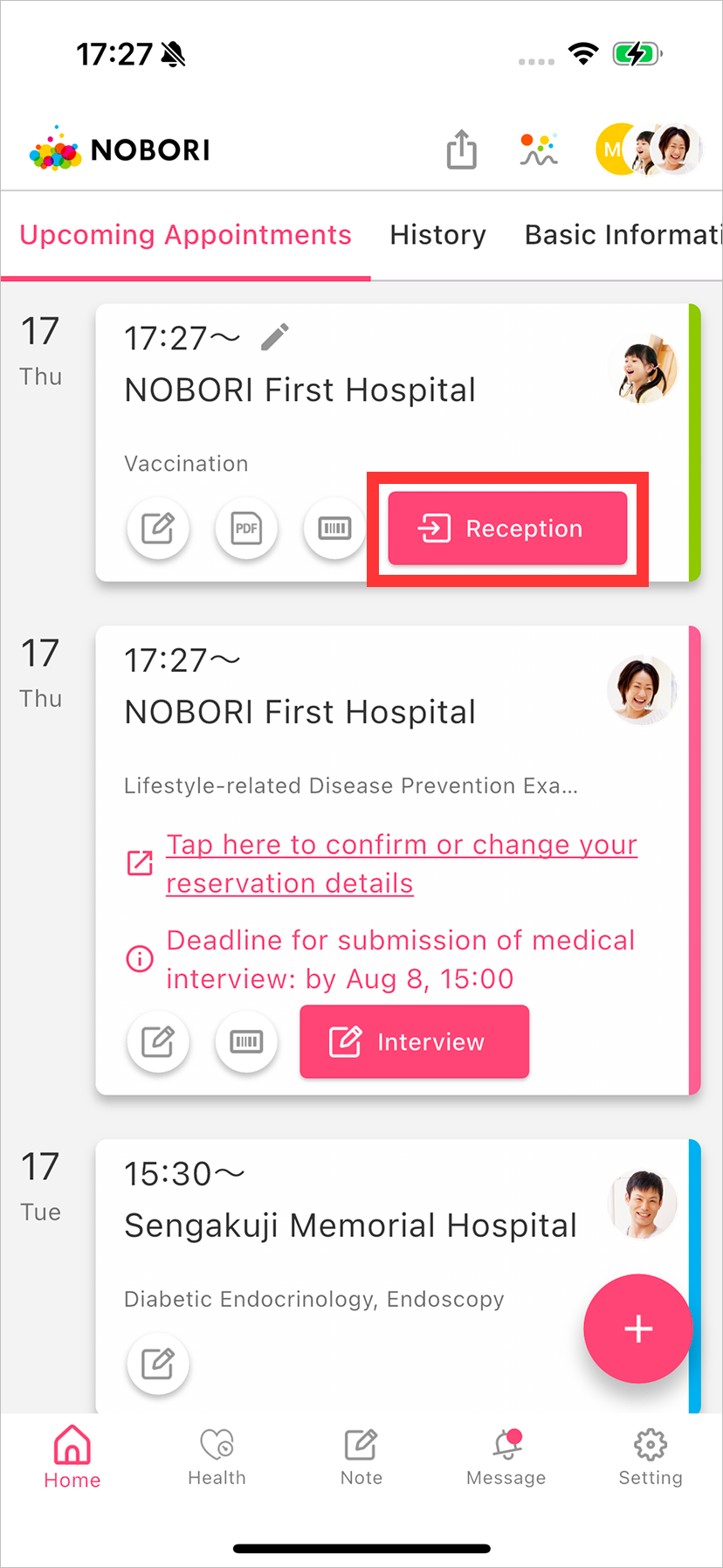
1. On the Home screen, tap the [Reception] button under the Schedule tab.
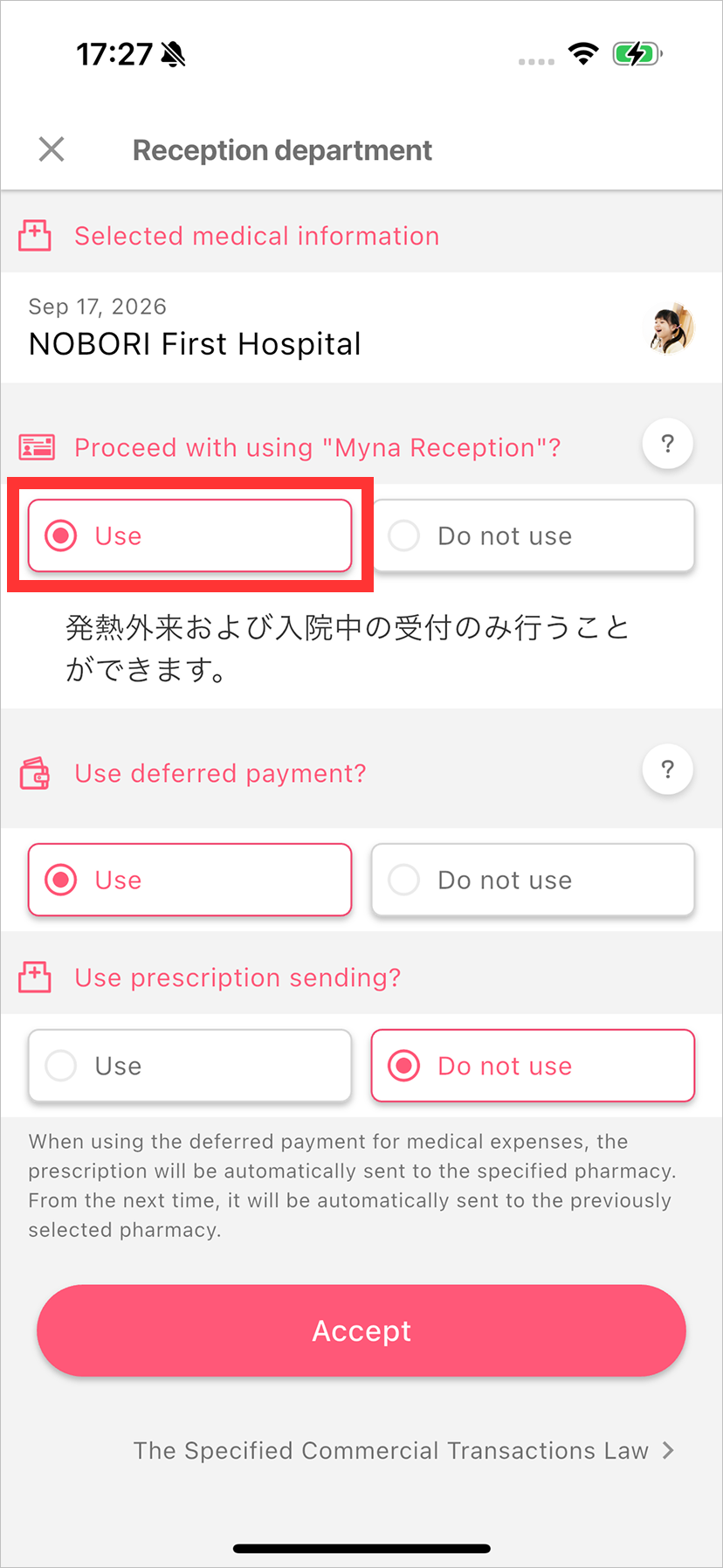
2. Turn ON Myna Reception and complete return-visit reception.
For [Would you like to use Myna Reception?], select [Use].
If the deferred medical payment feature or electronic prescription sending feature is available and you wish to use it, configure it, then tap [Receive with this content] to complete reception.
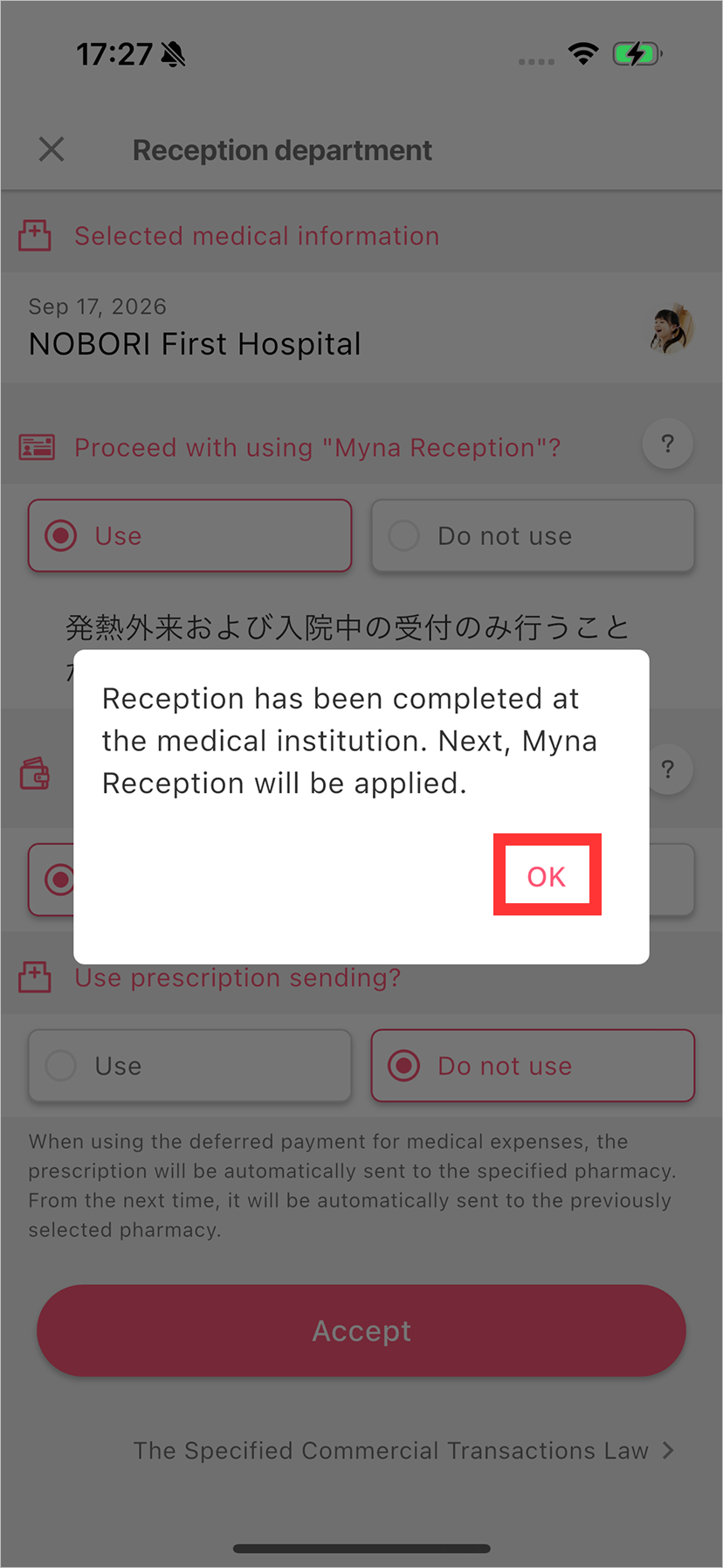
After reception, a dialog will appear; tap OK.
3. Transition to the Myna Home Reception Web
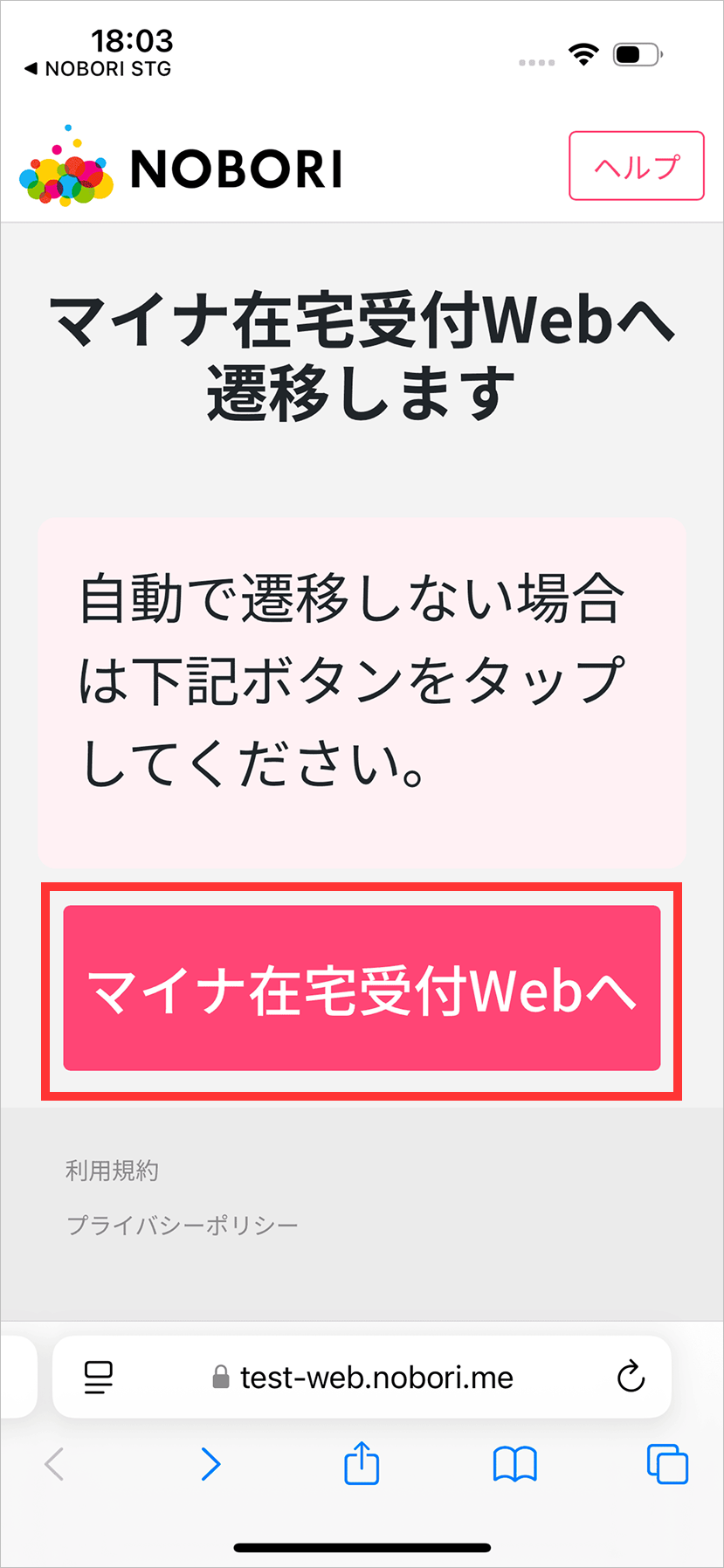
After tapping [OK], the browser app will launch automatically.
It will then automatically navigate to the Myna Home Reception Web. If it does not navigate automatically, tap the [To Myna Home Reception Web] button.
4. Registering Consent on the Myna Home Reception Web
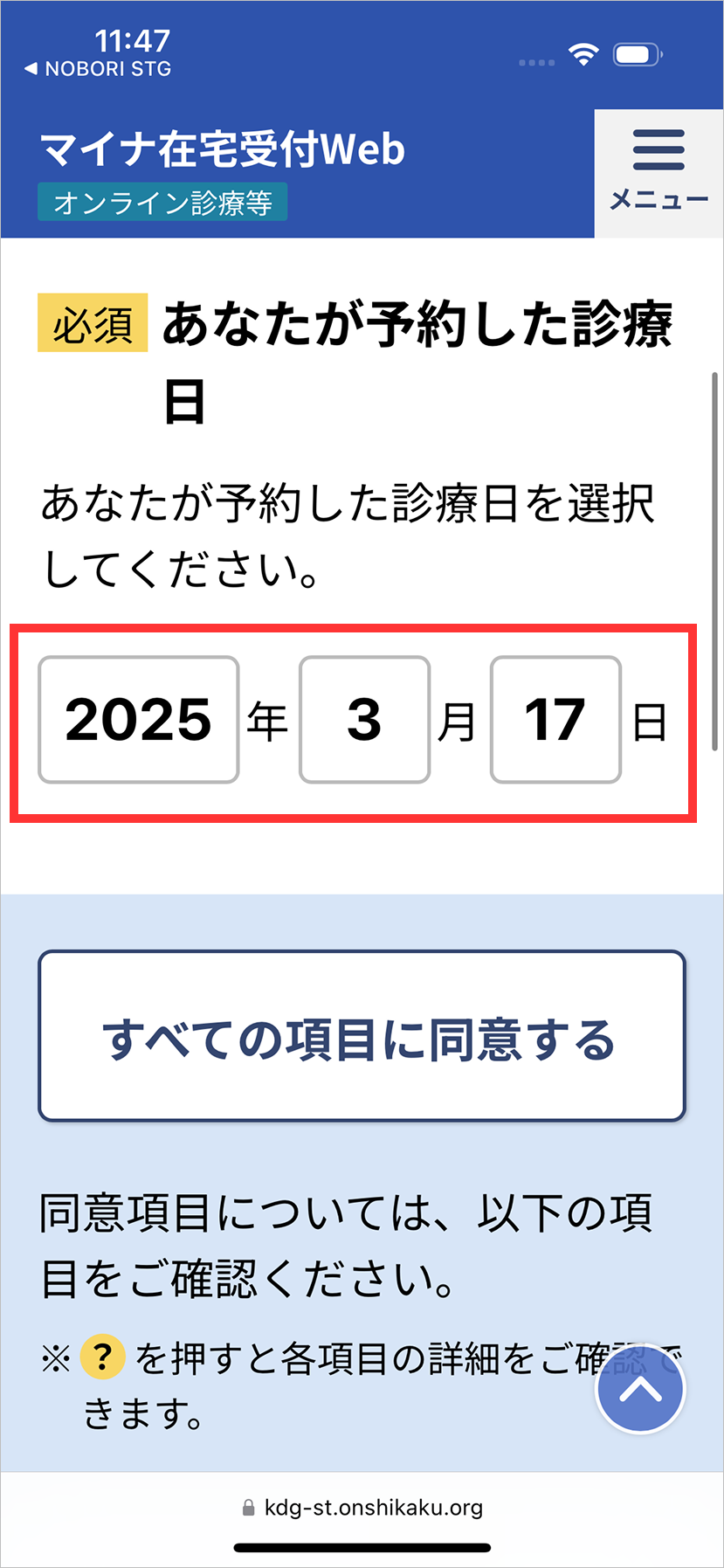
1. Check that the reserved consultation date shown on the Myna Home Reception Web is correct.
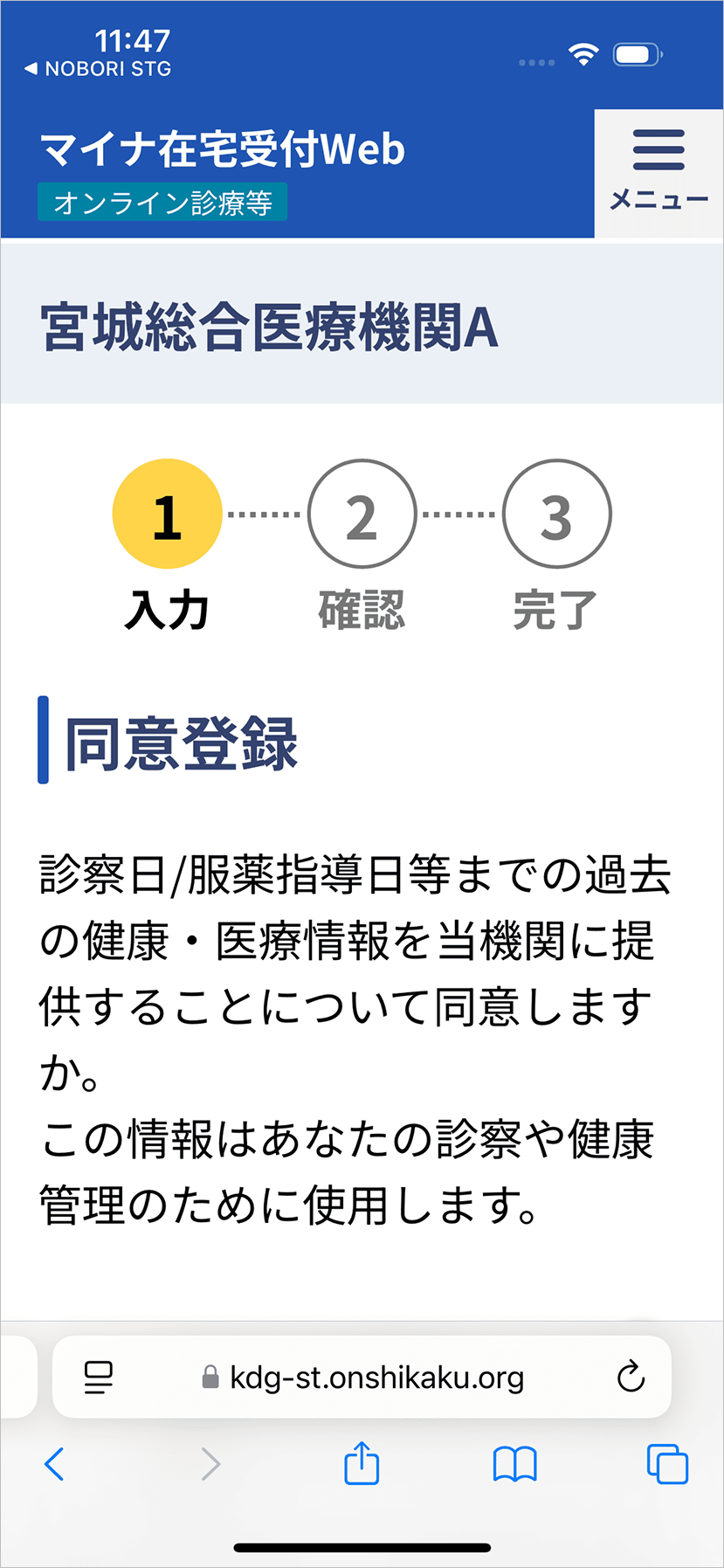
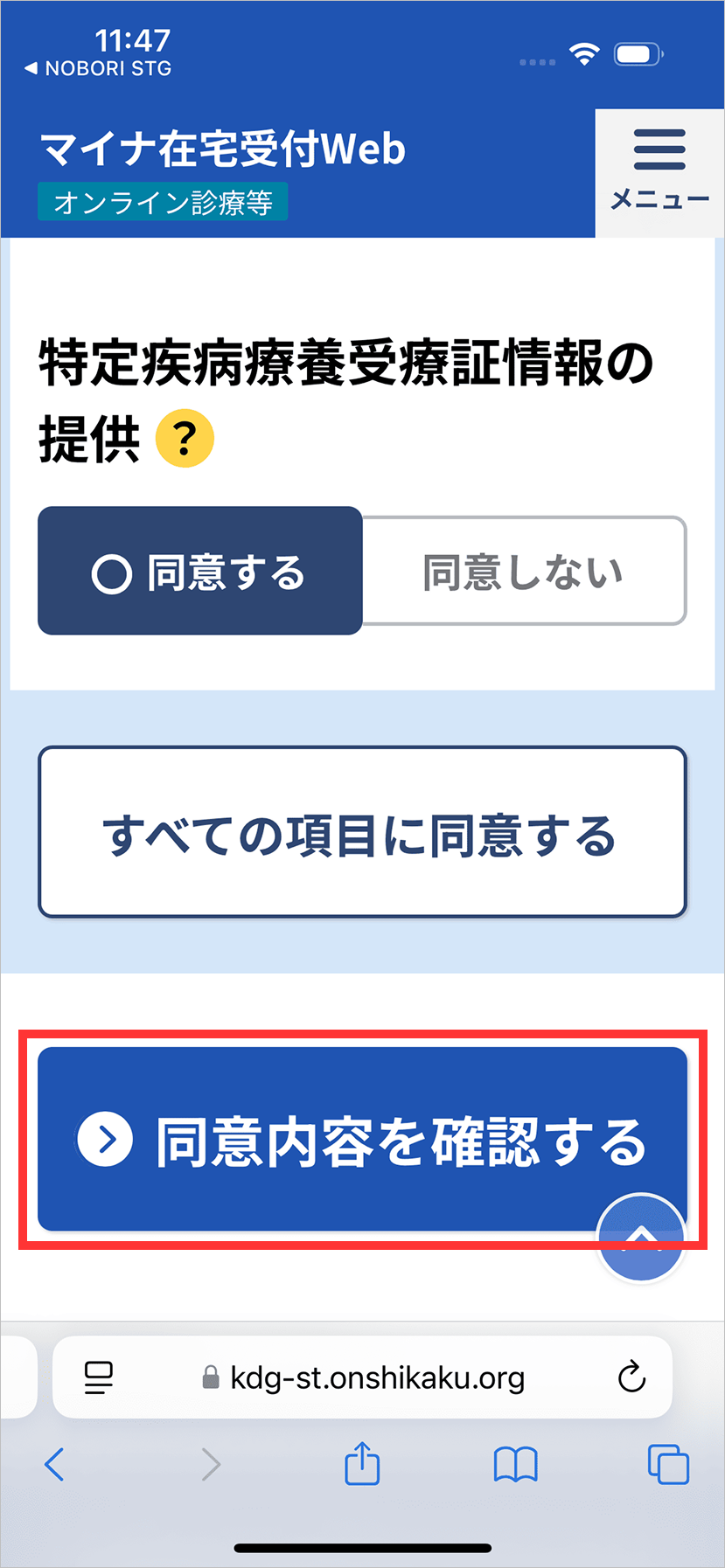
2. Agree to the items you can consent to, then tap [Check consent details].
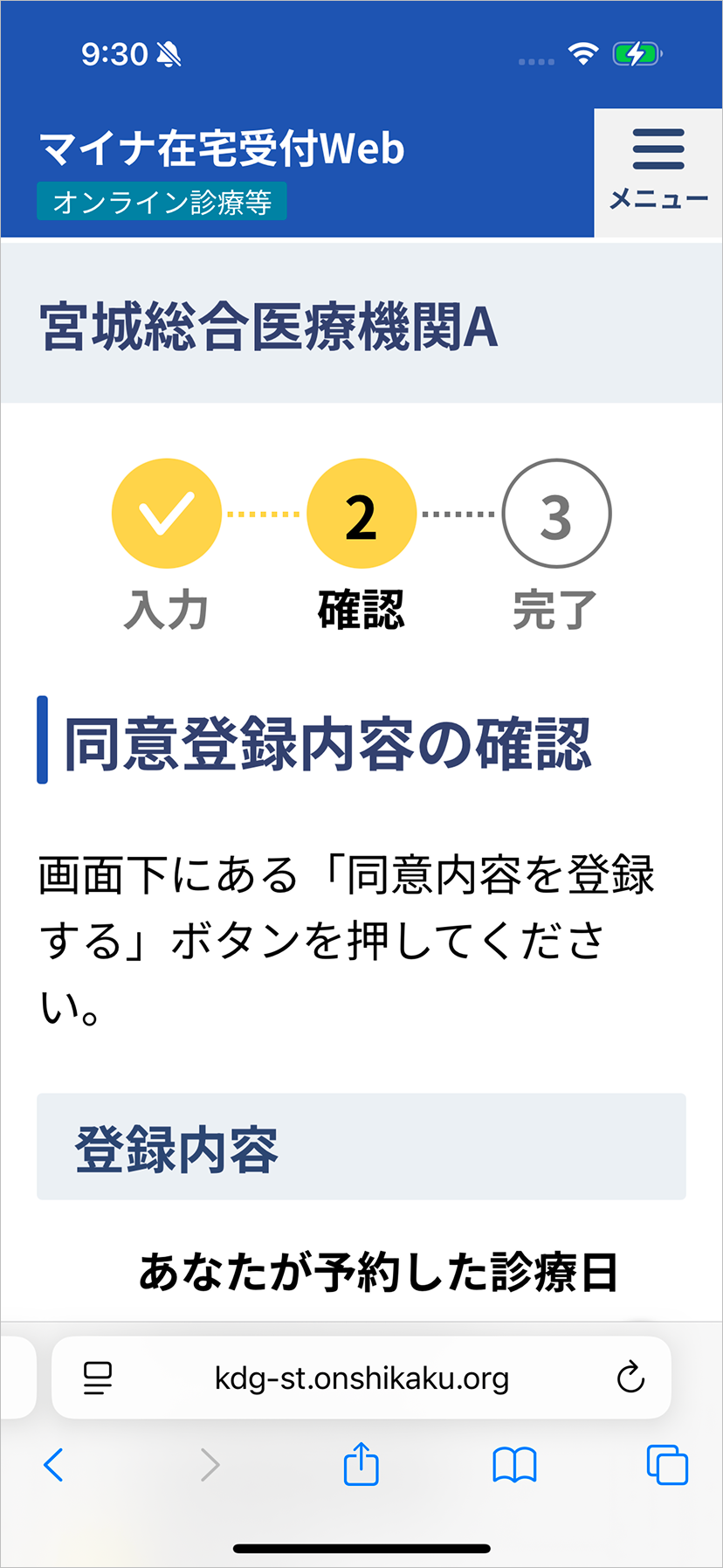
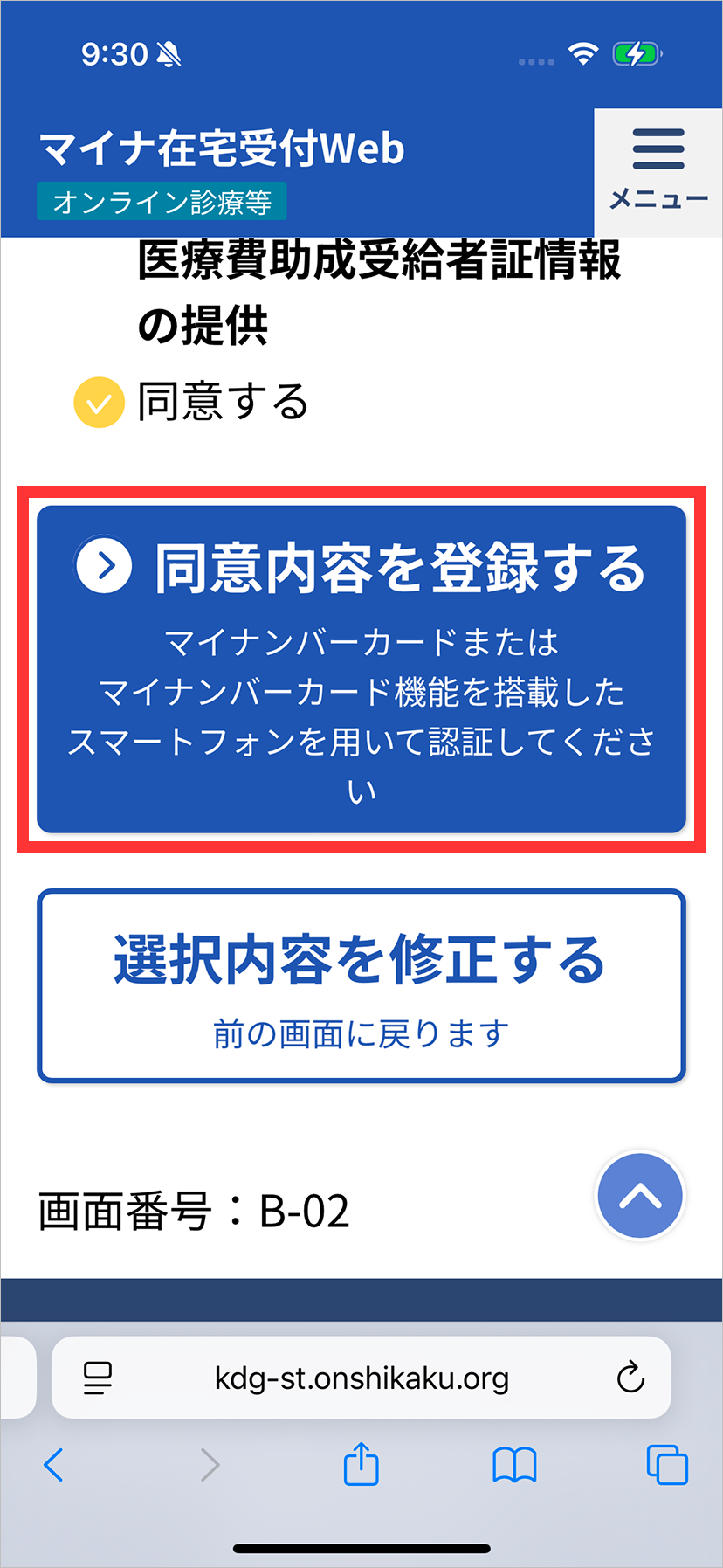
3. Review the consent details, then tap the [Register consent details] button.
5: Verifying Identity Using the Myna App
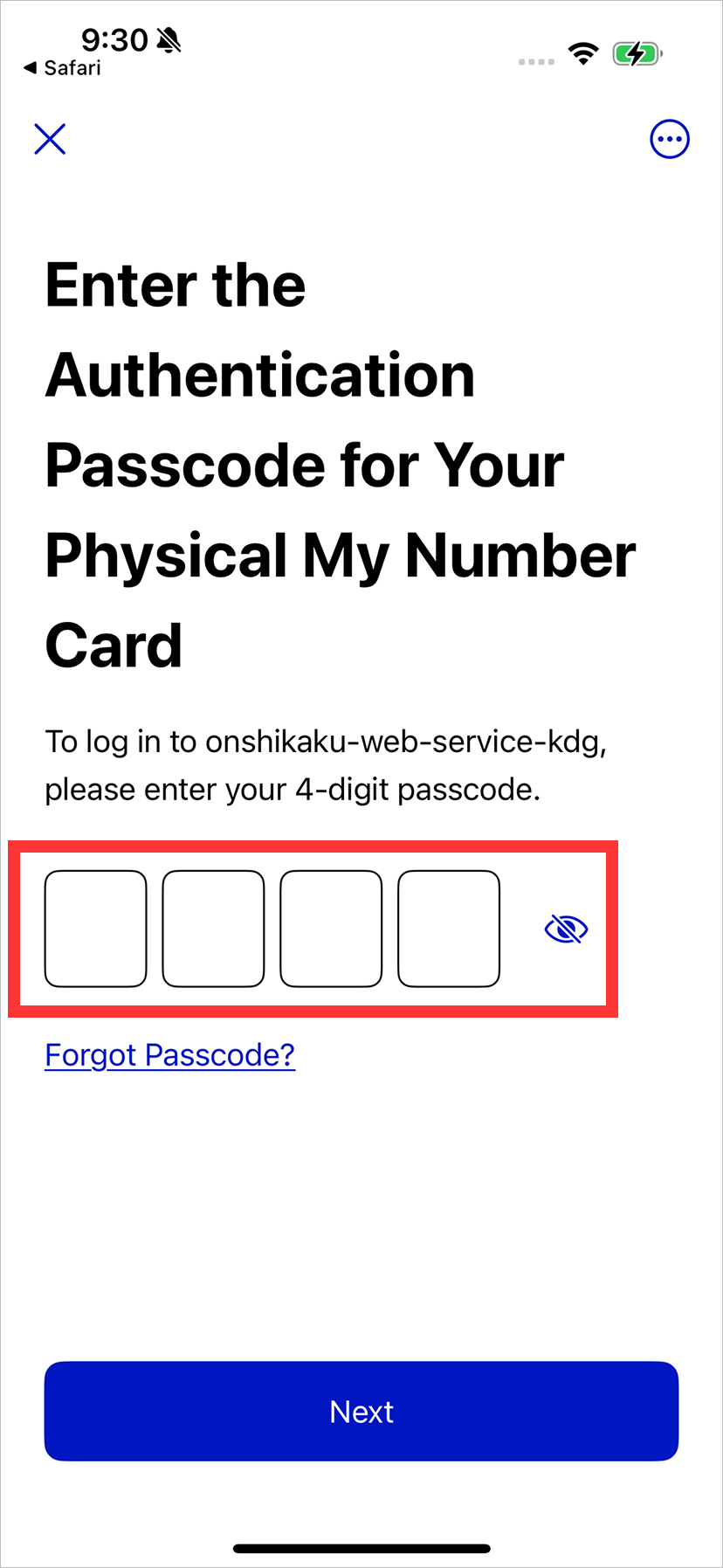
1. Enter your My Number Card password.
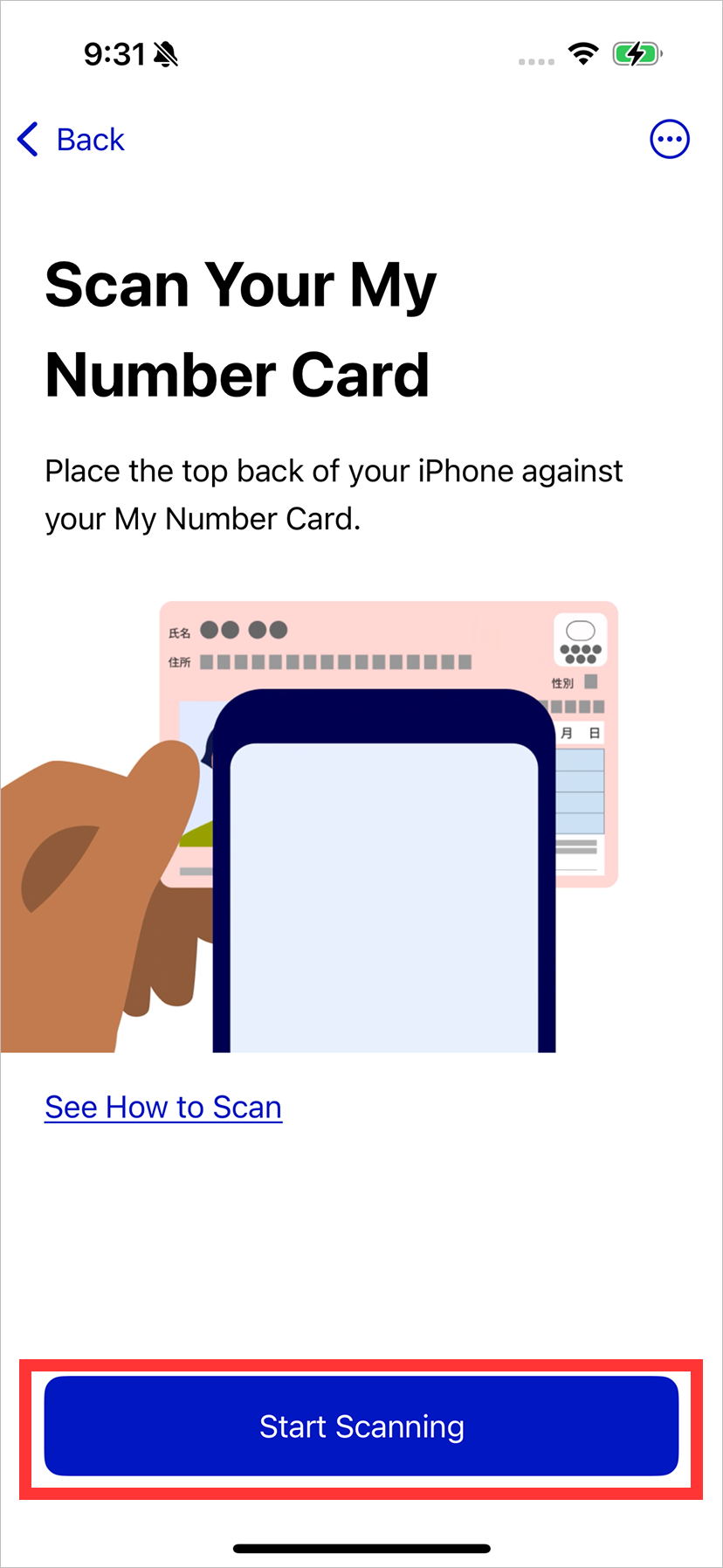
2. Tap the [Start reading] button.
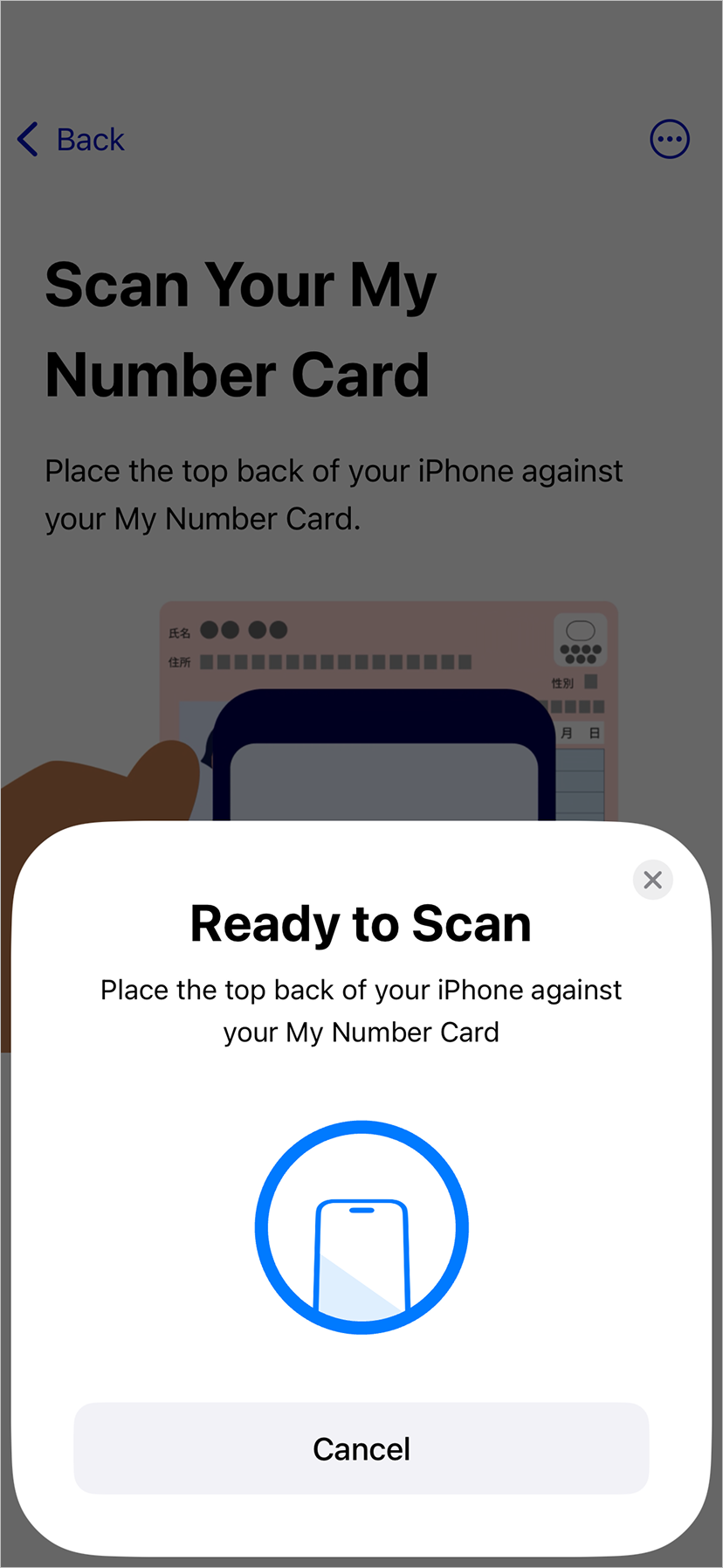
3. Read the My Number Card
Hold your My Number Card up to your smartphone to read the card.
The position where the card can be read differs by device, so if you are unsure how to hold it, go back to the previous screen and tap the [Check how to read] link.
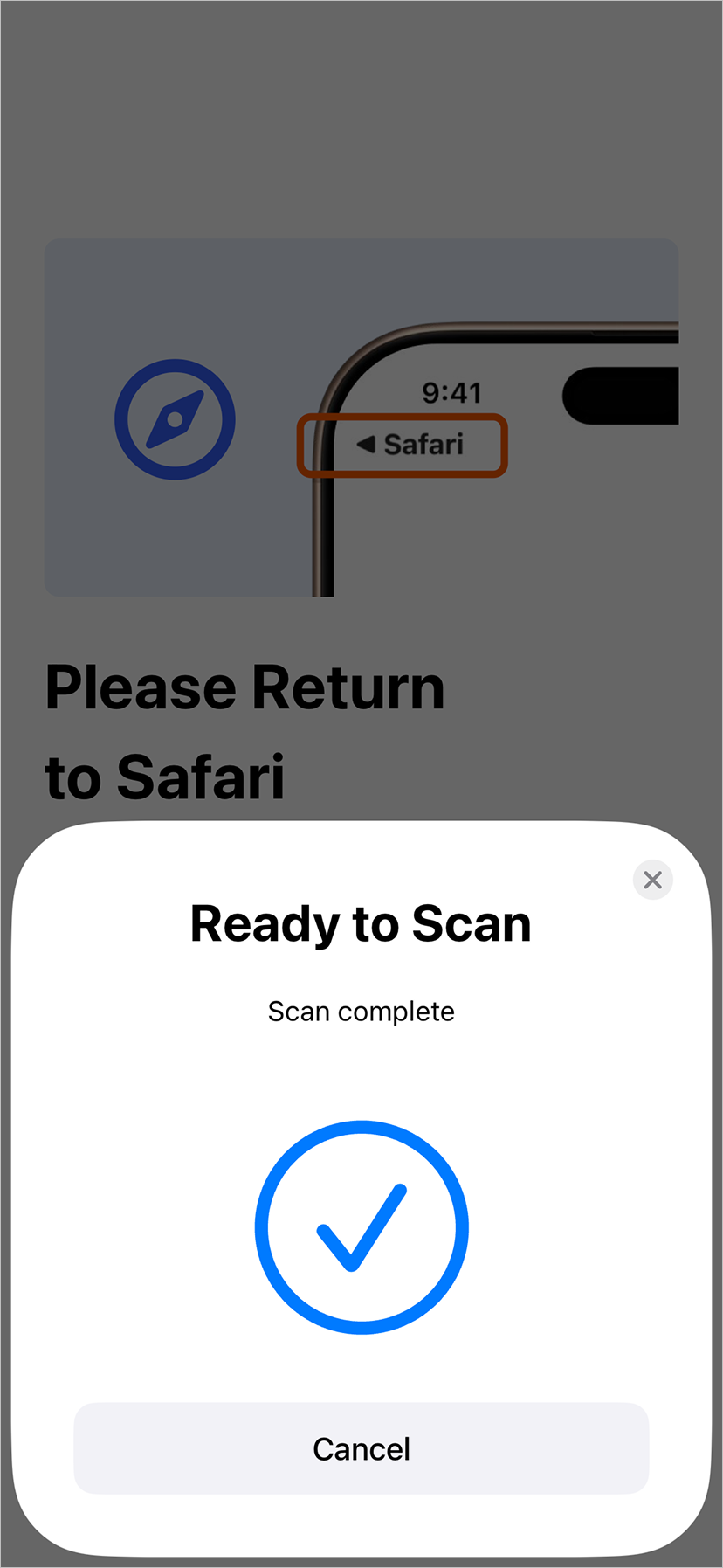
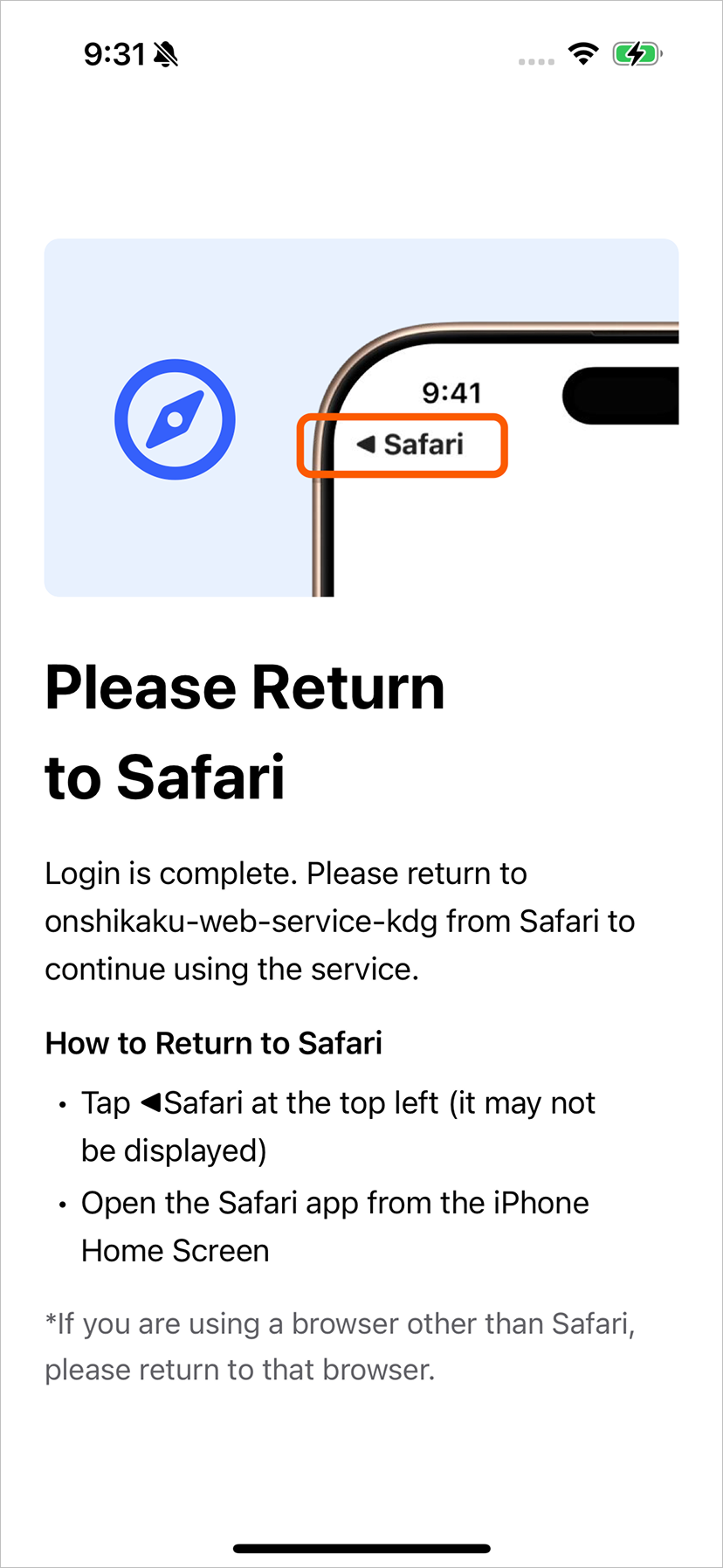
If you are using an iPhone, after reading is complete, tap [◀︎ Safari] in the upper left to launch the browser app.
If you are using Android, the browser app will launch automatically after reading is complete, so please wait.
6: Registering the Results of Qualification Confirmation
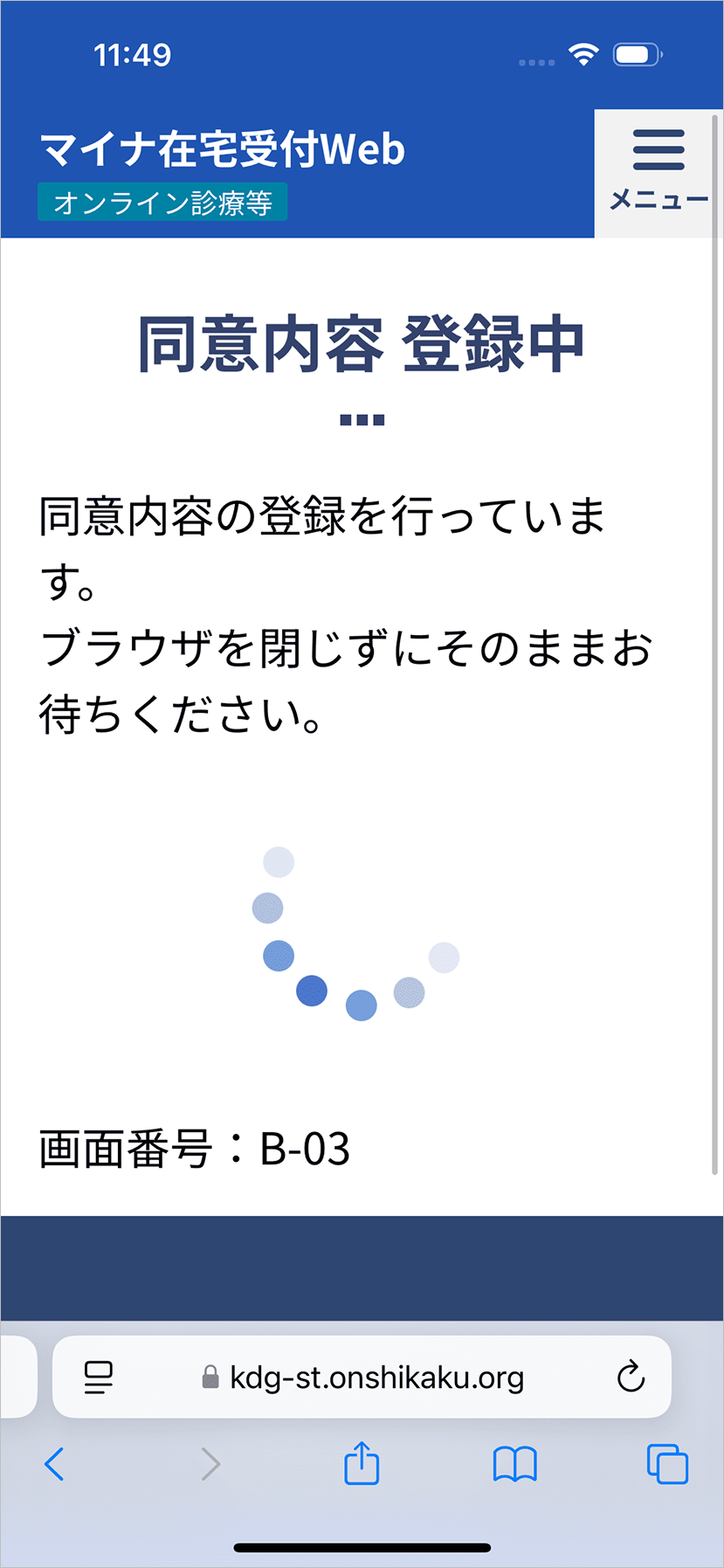
1. Register consent details on the Myna Home Reception Web
Registration of consent details is done automatically. Please note that closing the browser or having a poor internet connection may cause the registration to fail.
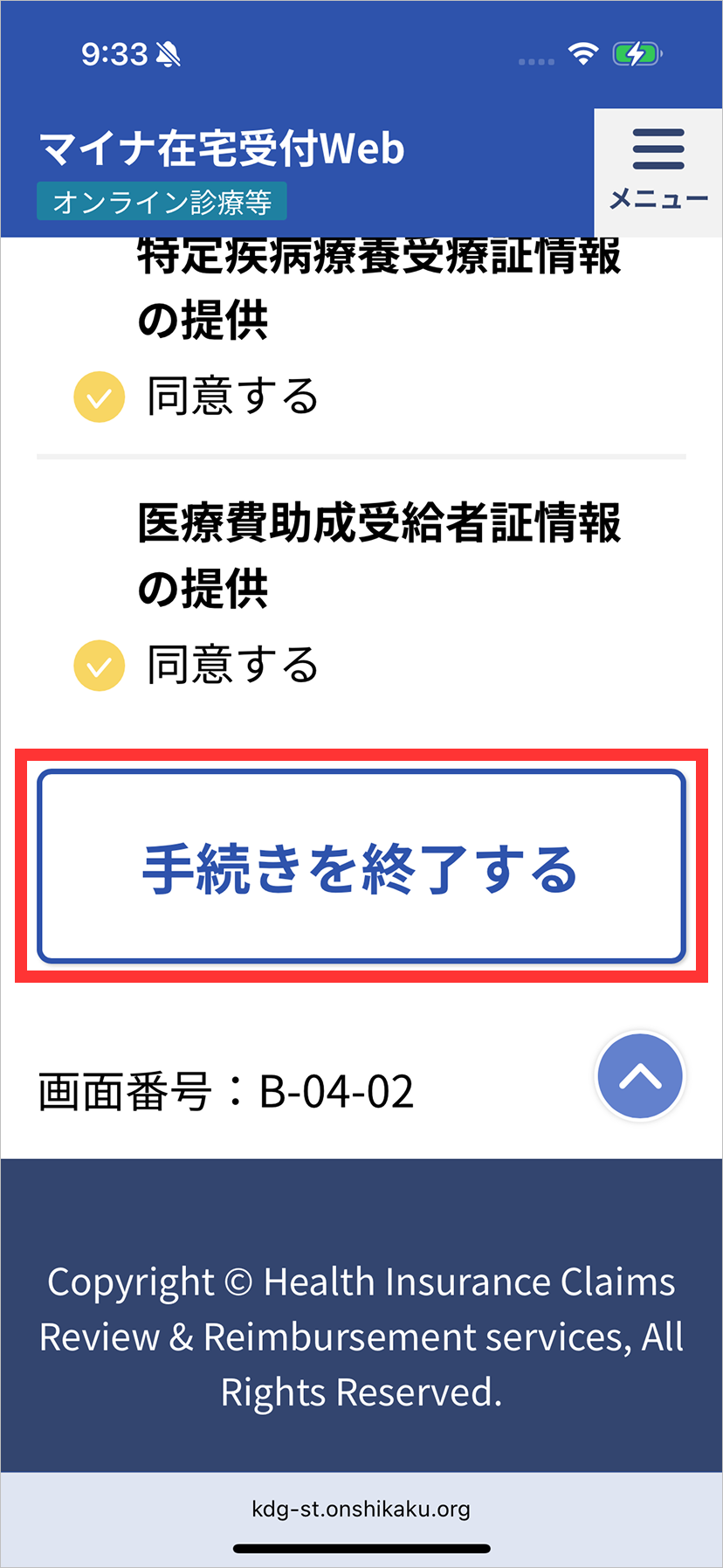
2. End the procedure on the Myna Home Reception Web
If there are no issues with the registered consent details, tap the [End procedure] button.
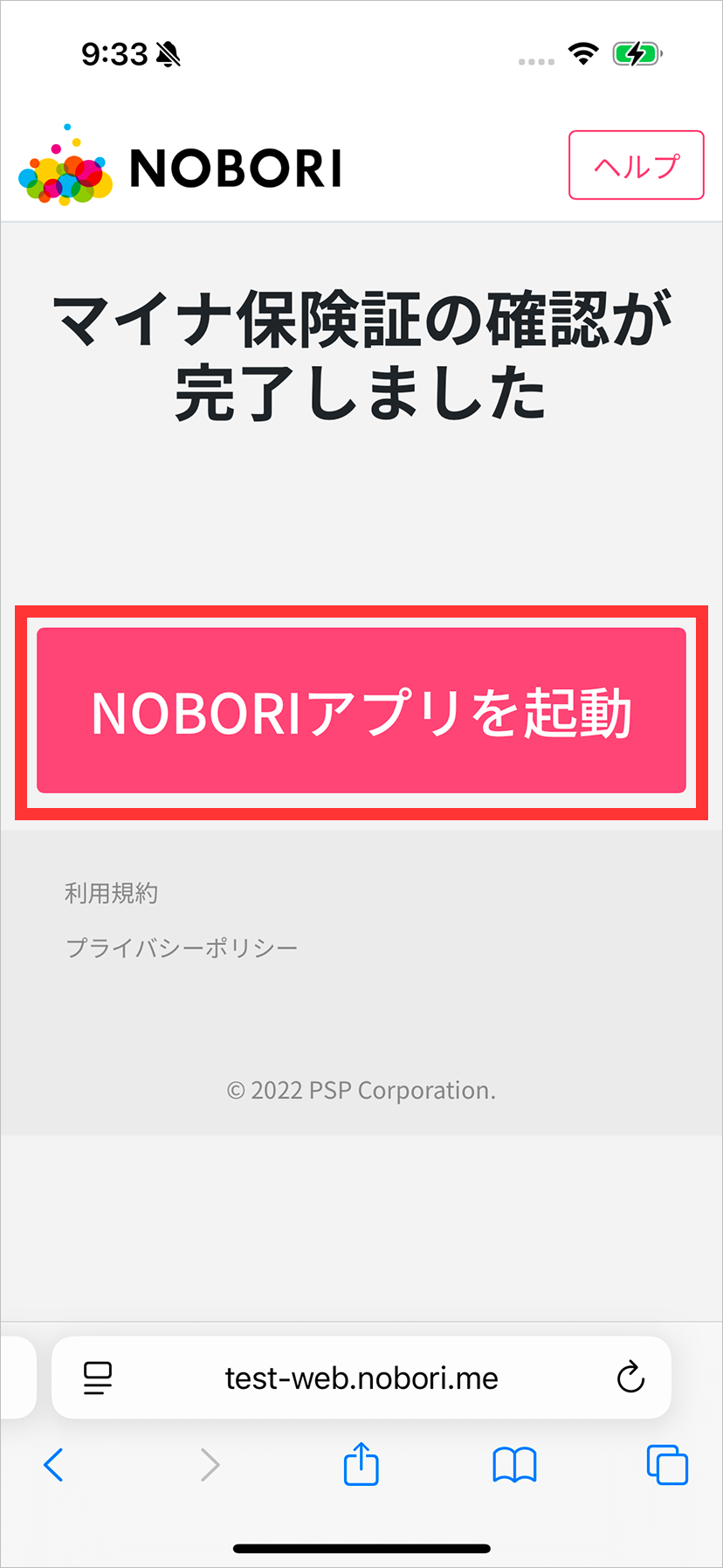
3. Launch the NOBORI App
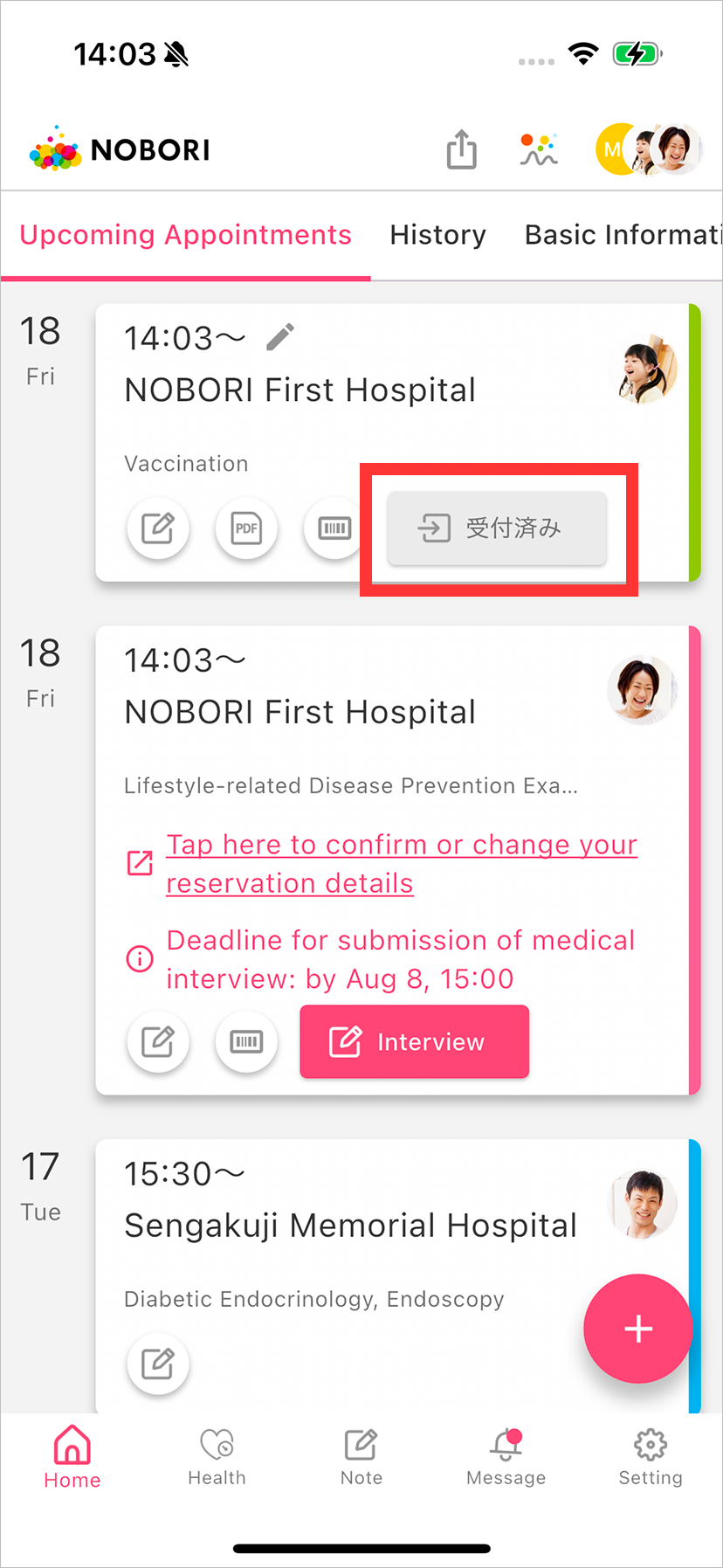
After tapping [End procedure], you can check the result of the qualification confirmation. If successful, [My Number health insurance card confirmation complete] will be displayed. If any other message is displayed, proceed to [7: If Qualification Confirmation Fails].
Tap [Launch NOBORI App] to launch the NOBORI app. The button on the Schedule tab will change from [Reception] to [Received] (or [Receiving]).
7: If Qualification Confirmation Fails
1. Transition to the NOBORI App
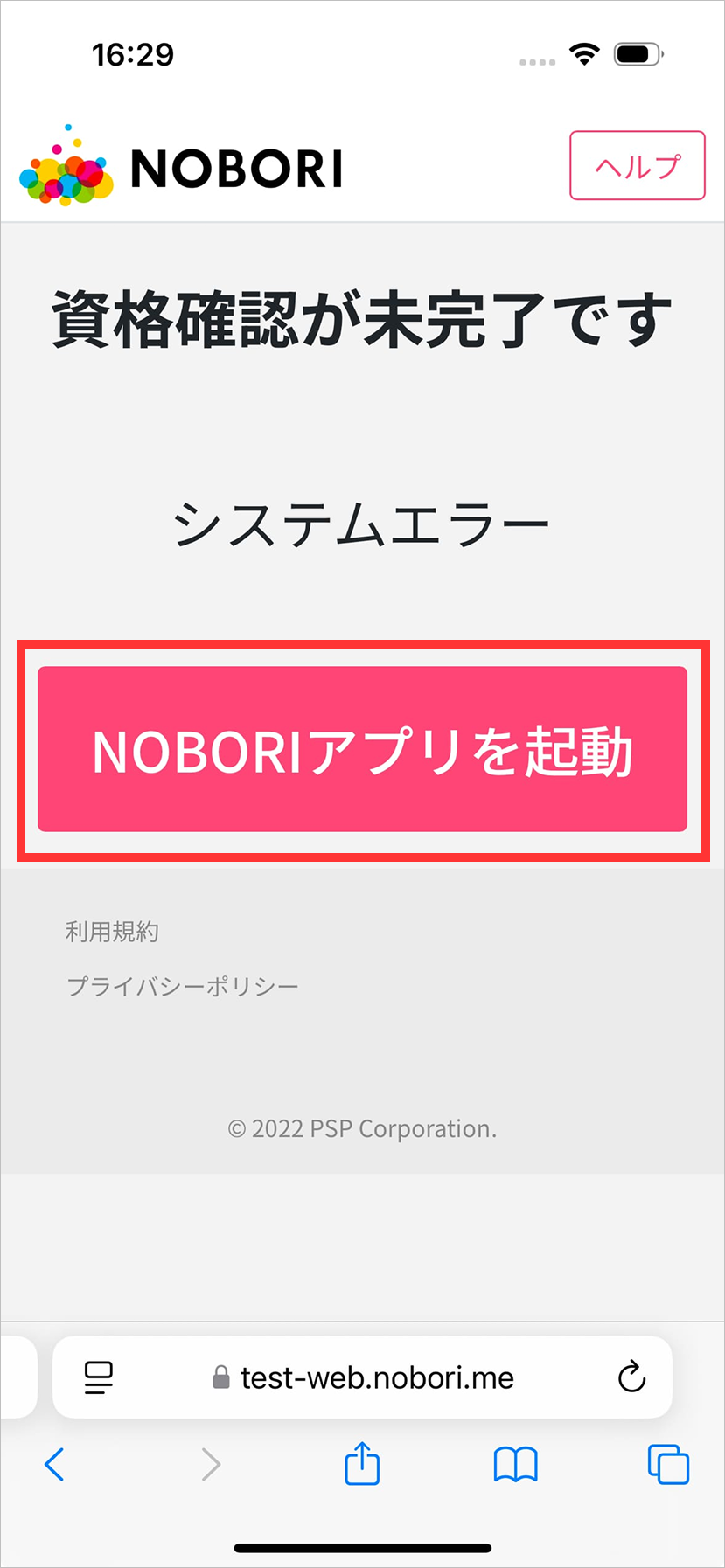
If qualification confirmation fails, [Qualification confirmation incomplete] will be displayed.
Tap [Launch NOBORI App] to launch the NOBORI app.
2. Redo Myna Reception from the Schedule Tab
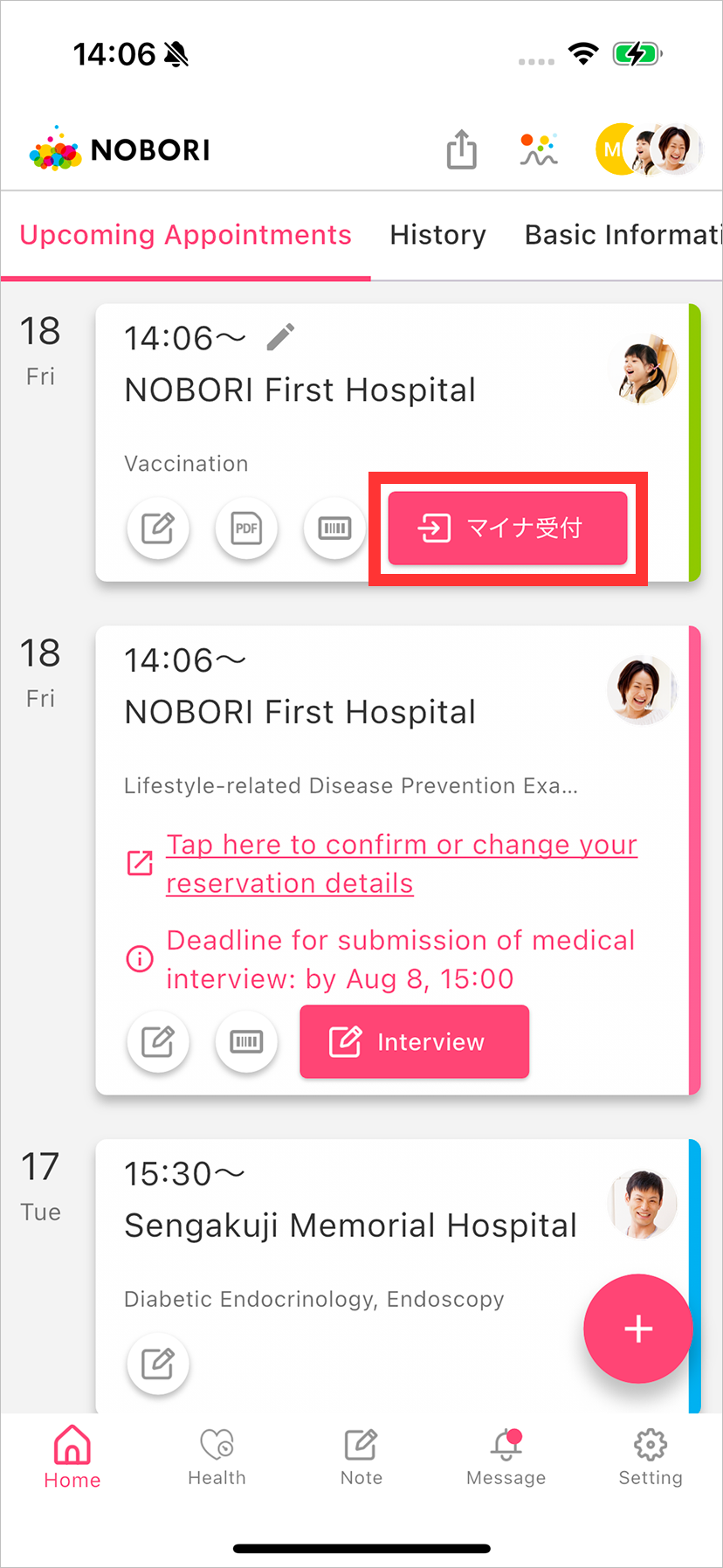
The button on the Schedule tab will change from [Reception] to [Myna Reception].
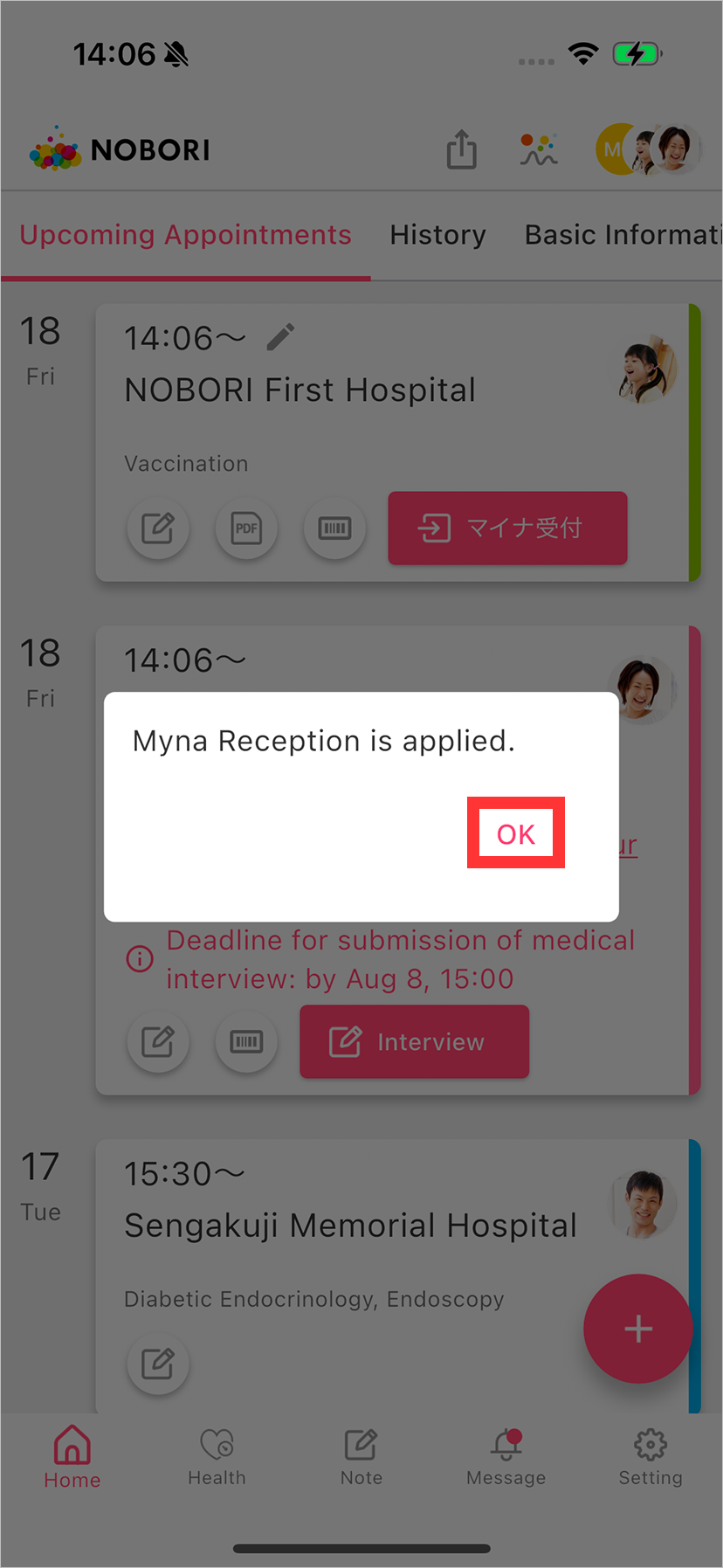
Tap [Myna Reception], then tap [OK] on the dialog.
After that, repeat the steps from [3-3. Transition to Myna Home Reception Web] through [6-3. Launch NOBORI App] again.
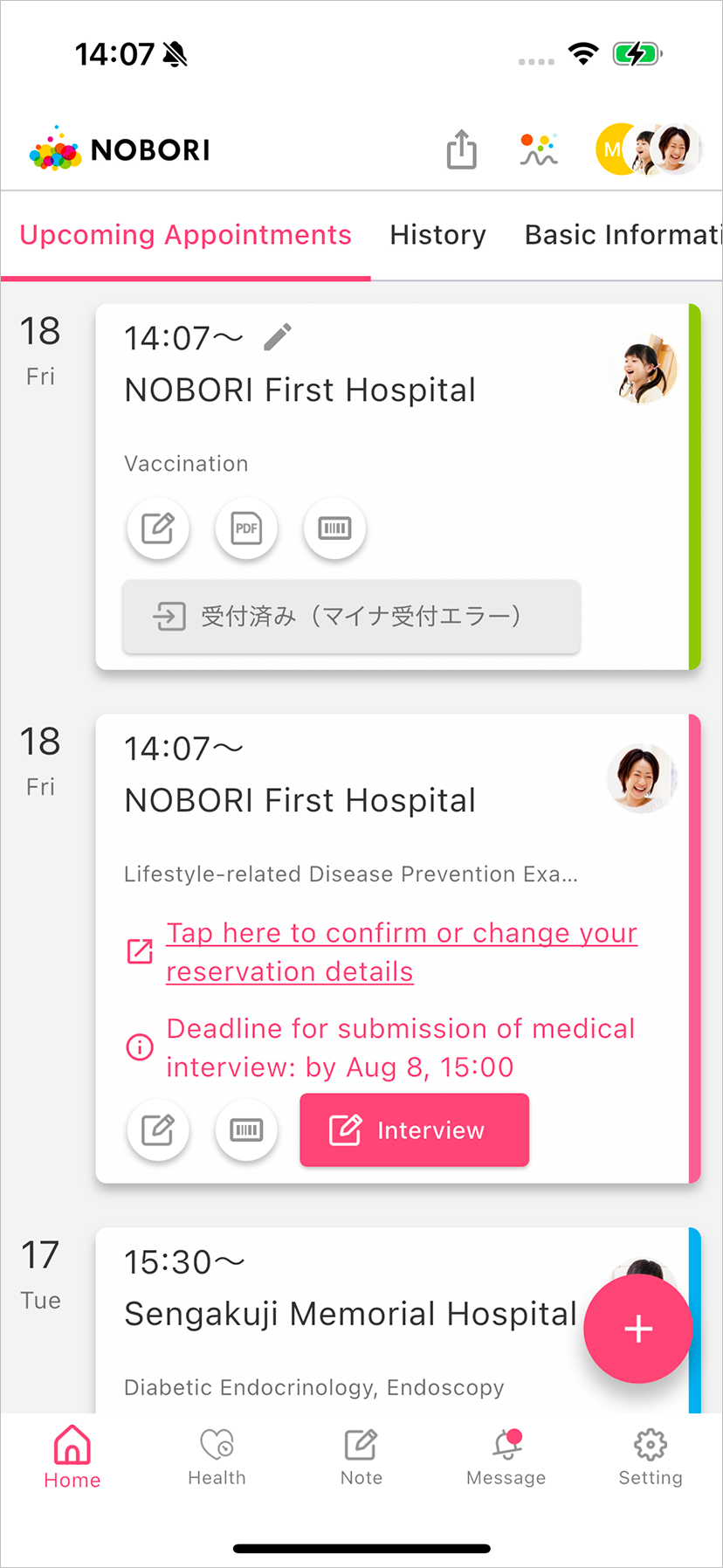
8: If [Already Received (Myna Reception Error)] Is Displayed in the App
Some medical institutions disable Myna Reception after return-visit reception has been completed, which causes this error to be displayed. If this happens, please contact the medical institution.
9: Other
If you open the app while consent registration on the Myna Home Reception Web is still in progress, [Received (Myna Reception Not Completed)] will be displayed. Please return to the original browser (see [4: Registering Consent on the Myna Home Reception Web]) and complete the remaining steps of the procedure.